 Plume
Documentation
Plume is a Markdown reader. Everything below the first section is optional — the app works fully with no account at all.
Getting started
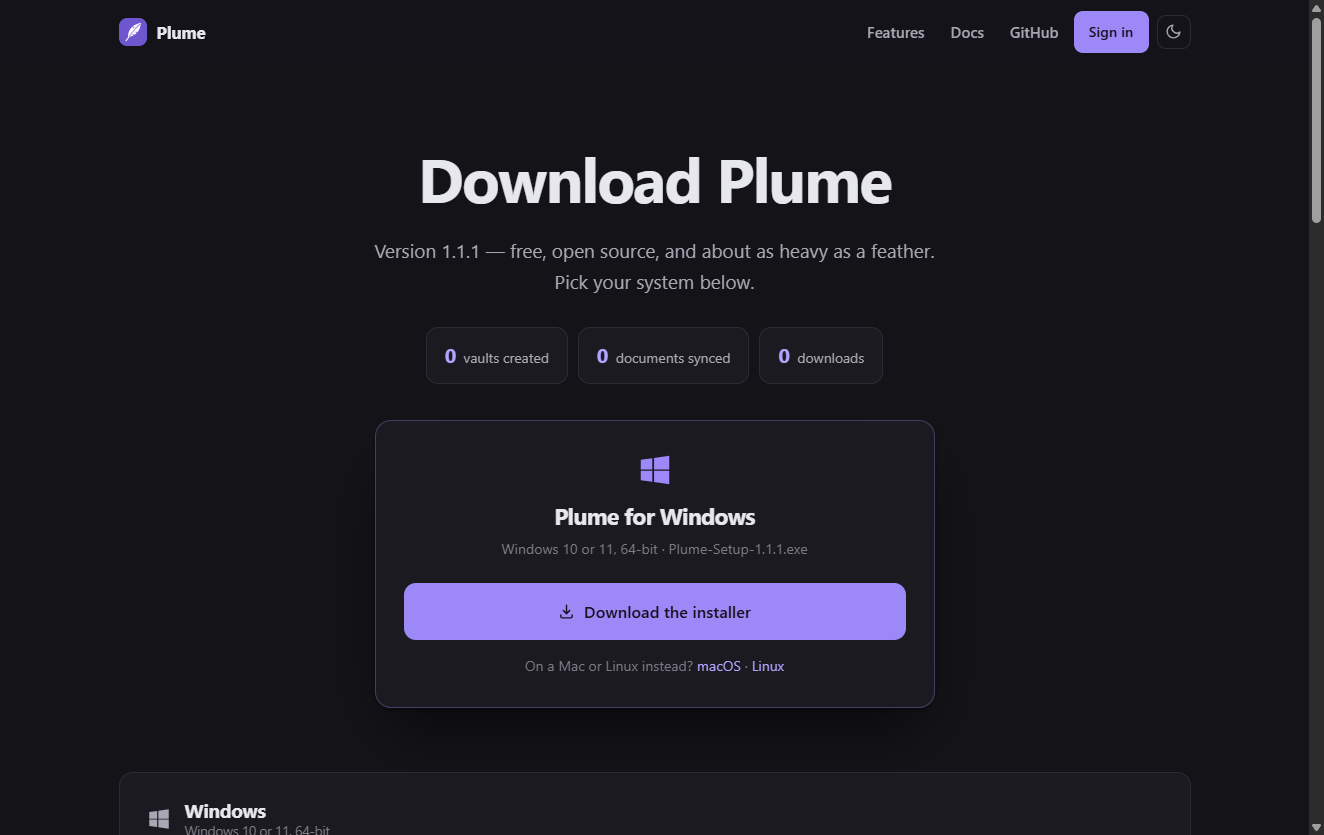
- Install it. Pick your system on the download page. The builds are not code-signed yet, so Windows and macOS warn on first run; the download page explains how to get past that for each system.
- Open a document. Double-click any
.mdfile, drag one onto the window, or pressCtrl+O. - Make it the default if you want every Markdown file to open here. Windows and macOS only let you choose that yourself — see Troubleshooting.
That is the whole app. No vault to create, no project to open, no account.
Reading documents
Plume opens one document per window. Opening a second file while Plume is running gives it its own window instantly, with no cold start.
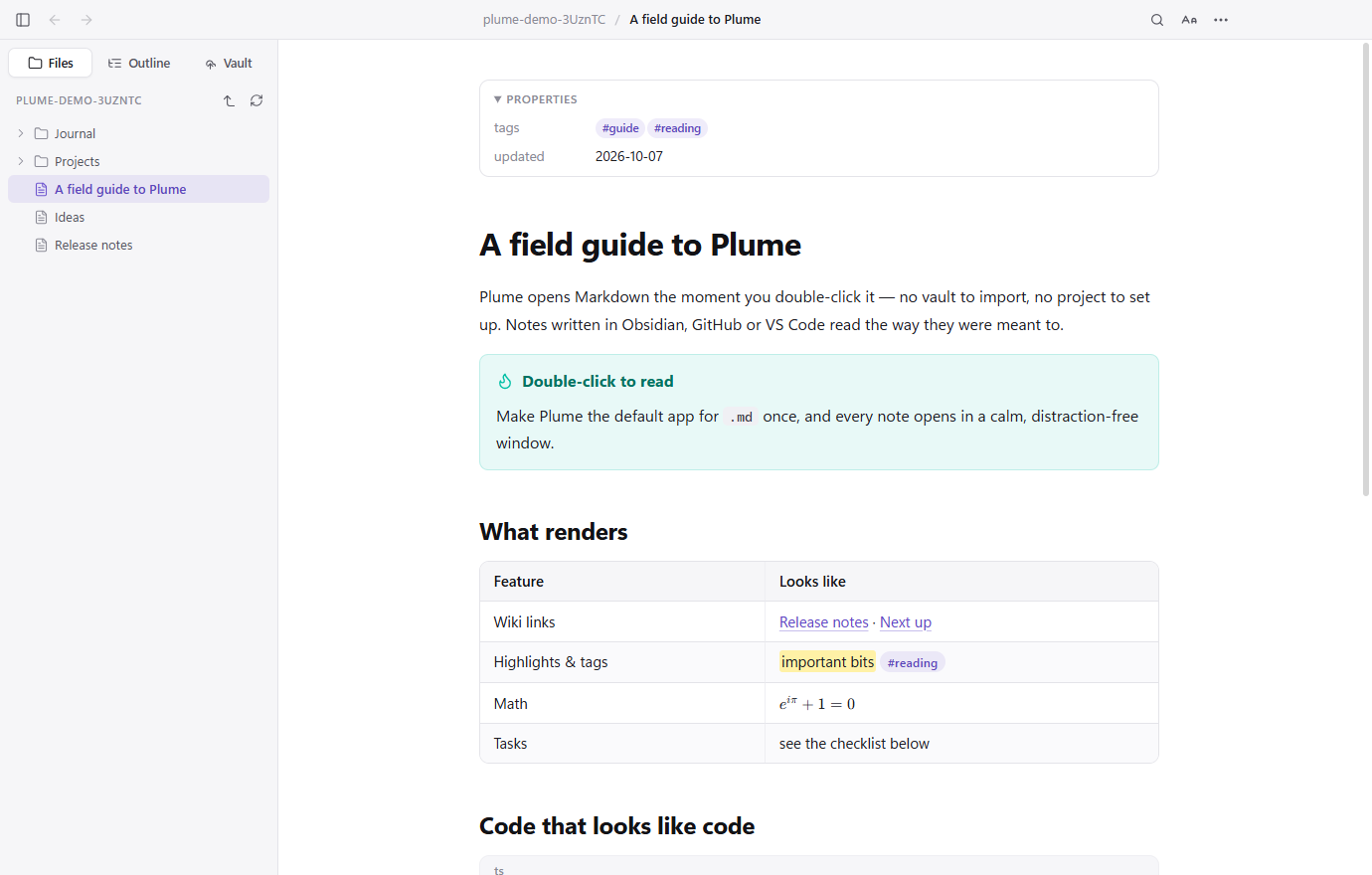
- Open a folder of notes from the welcome screen, or ⋯ → Open folder…, and the sidebar roots itself there and stays there — opening a note inside it reveals the file in the tree instead of re-rooting on the note's own folder. Plume remembers the folder, so it is waiting next time; Close folder lets it go.
- New notes come from the Files tab: the
+in its header makes one in the folder the tree is showing, the+that appears on a folder makes one inside that folder, andCtrl+Shift+Ndoes the first of those from the keyboard. Type the name in the tree where the note will be and pressEnter— it is created, opened and ready to type in;Escleaves nothing behind. The button beside it makes a folder the same way. If you are in a linked vault, the note goes up with everything else. - Organising them is a right-click away: the Files tree has a menu on every row — open, open in a new window, rename (
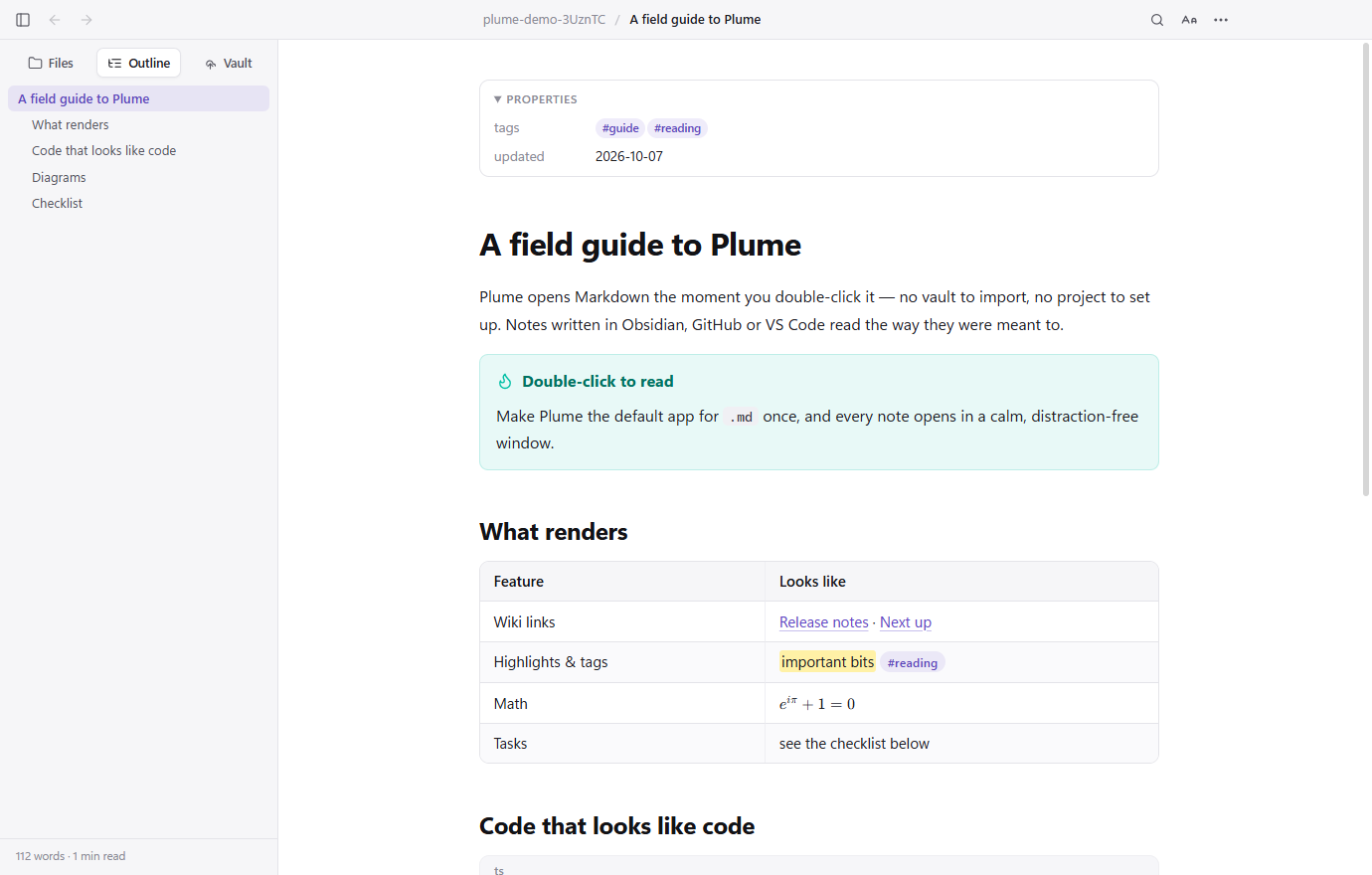
F2), move to trash (Del), delete permanently (Shift+Del), copy path, show in folder, and on a folder, a new note or folder inside it. Drag a note onto a folder to move it there. Renaming rewrites the links that pointed at the note —[[Plan]],![[Plan]],[[Plan#Heading|alias]]and[the plan](Plan.md)all follow it, across every note in the folder the sidebar is showing, and Plume says how many it changed. Deleting goes to your system trash and asks first; delete permanently takes it off the disk instead and nothing can bring it back, so Plume asks for that one in a window of its own. Links to a deleted note are left broken on purpose, because that is how you notice. - The sidebar has two tabs — Files (the folder around your document, or the whole vault if it is in one) and Outline (every heading, with a reading time) — and the vault bar at its foot, which names the vault you are in and lists the others. Toggle the sidebar with
Ctrl+\. - Reading settings (the
Aabutton) set the theme, the colour palette, text size, reading width, serif or sans, whether a click edits a paragraph (live preview), and whether a single newline is a line break. - Live reload: save the file in any editor and Plume updates in place, keeping your scroll position. Write in your editor, read here.
- Find in page with
Ctrl+F; back and forward between linked notes withAlt+←andAlt+→, or your mouse side buttons. - Print and Export as PDF from the
⋯menu. PDFs get a real outline built from your headings, and diagrams are redrawn in the light theme for paper.
Themes & palettes
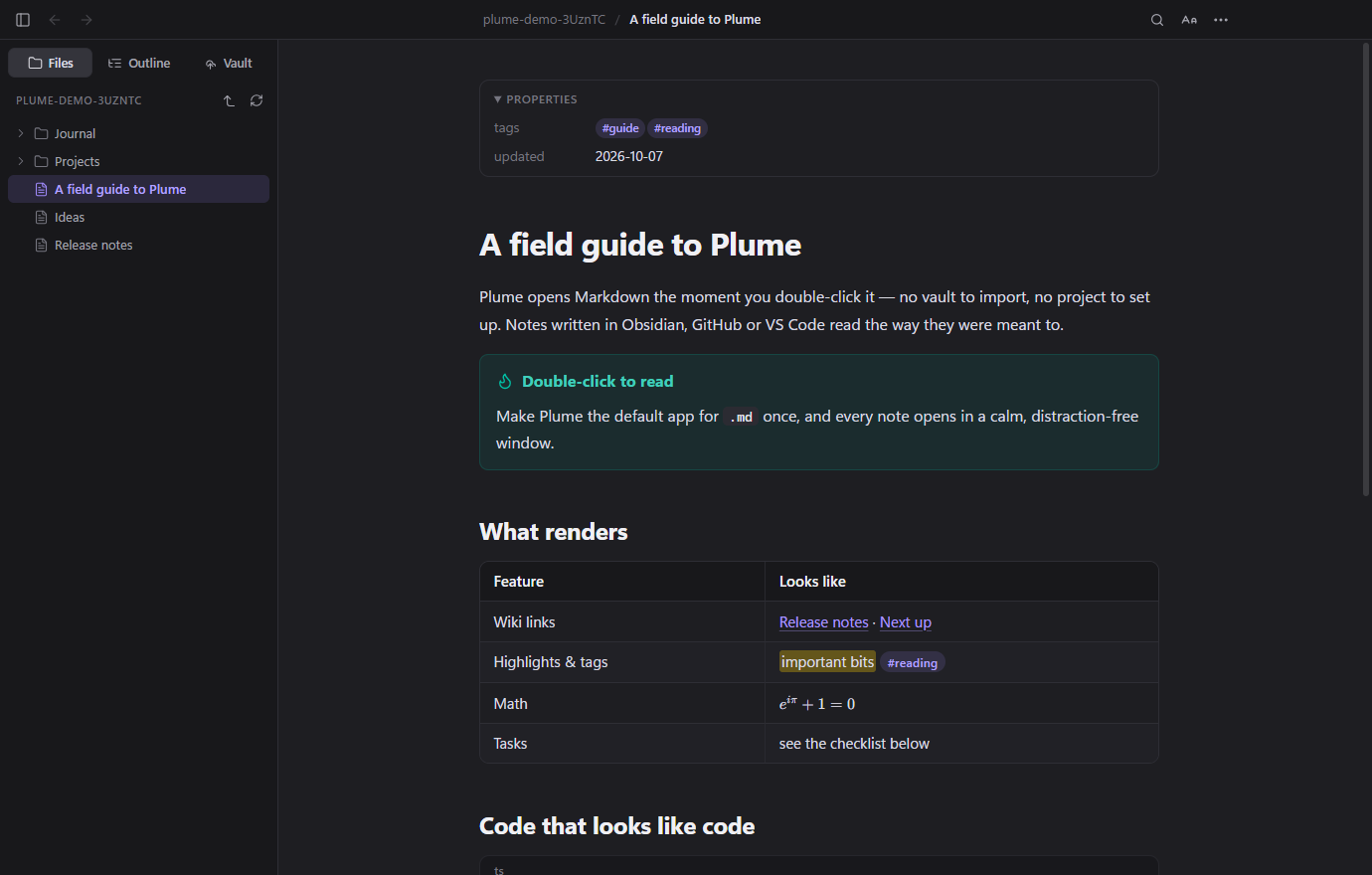
Two settings, and they do different jobs. Theme is Auto, Light or Dark — Auto
follows your system. Palette recolours whichever of light or dark is in force, so
Auto keeps following the system inside every palette rather than being replaced by it.
Both live under Reading settings (the Aa button).
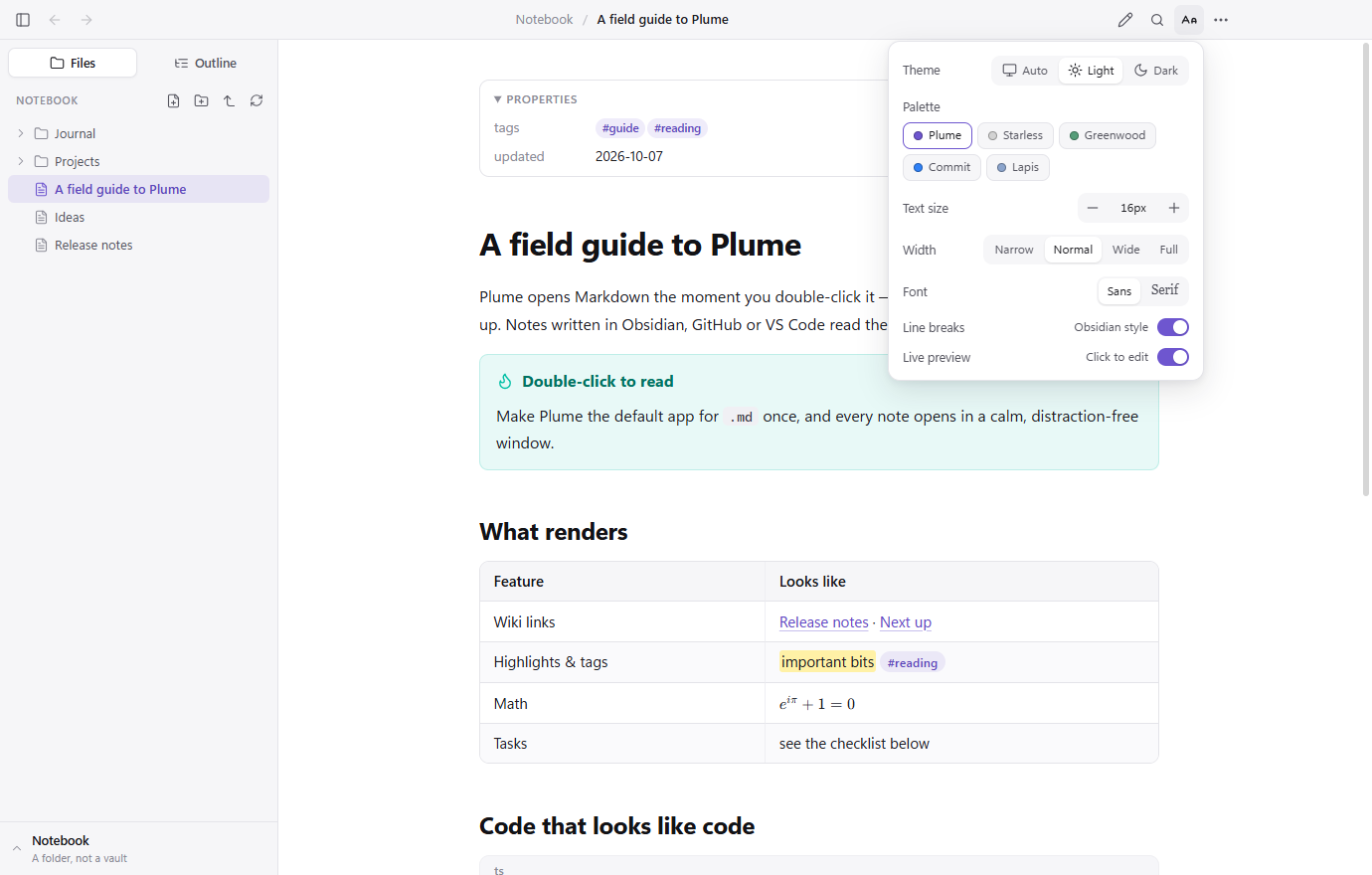
- Plume — the one it ships with: a violet accent on a neutral ground.
- Starless — a monochrome interface on true black. Code keeps its syntax colours, because those carry meaning.
- Greenwood — warm forest greens on a soft, low-contrast ground.
- Commit — the palette a diff is usually read in.
- Lapis — deep blue stone, with a navy accent rather than a bright one.
The same five are on this website and the web vault, in the footer, and your choice is remembered per device.
The four beyond Plume’s own are derived from Void, Everforest Enchanted, GitHub Flavored Markdown and Sodalite — Obsidian community themes, each MIT licensed. The CSS is Plume’s and the names are different so neither is mistaken for the other. Void and Sodalite are dark-only upstream; their light sides are built here from the same hues. Where a borrowed colour was not readable enough it was adjusted: every palette clears 3:1 contrast for body text, links and accents in both modes.
Obsidian notes
Plume reads the Obsidian dialect, so you can open a vault note without opening the vault:
| What you write | What Plume does |
|---|---|
[[Note]] | Links to it anywhere in the vault, ignoring letter case |
[[Note#Heading|alias]] | Jumps to that heading, shown as the alias |
![[image.png|300]] | Embeds the image at that width |
![[Note#Section]] | Pulls that section in |
> [!tip] | A callout; [!warning]- is foldable |
==highlight== | Highlights it |
#tag, %%comment%%, ^block-id | Tags, hidden comments, block references |
| Front matter | Shown as Properties at the top |
GitHub-flavoured Markdown works too: tables, task lists, footnotes, definition lists, emoji shortcodes, syntax highlighting, KaTeX maths and Mermaid diagrams.
For a note inside a real Obsidian vault, ⋯ → Open in Obsidian hands it over.
Vaults
A folder on your computer is never quietly a vault. It is in one of three states, and you are the one who moves it between them.
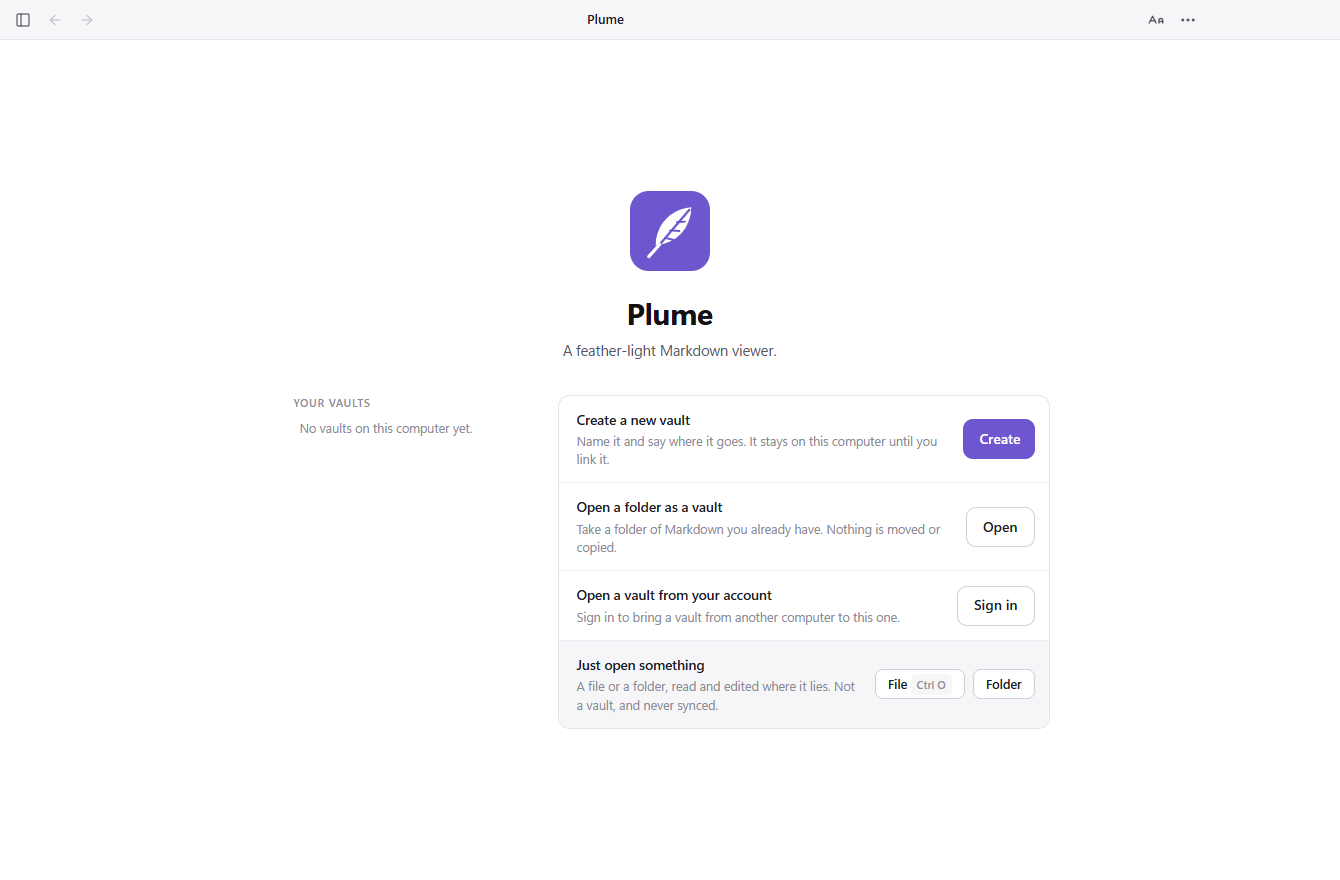
The three on the right are not the same act. Create a new vault makes a folder and a vault in it. Open a folder as a vault takes Markdown you already have and claims it where it lies. Open a vault from your account brings one down from another computer. Under them, quieter, is the way in that commits to nothing at all: open a file or a folder and leave it loose.
Three states
- Loose files and folders. Open a
.mdfile or a folder and you can read and write everything in it. It is not a vault: there is no index, no backlinks across it and no graph — and it can never sync. That last one is a guarantee rather than a default. The main process has no channel left that can hand a local path to the cloud, so nothing in the app, and nothing you press by accident, can start uploading a folder you only opened. - A local-only vault. A folder with a
.plume/directory in it, made by Create a new vault or by claiming a folder you already have. The folder now has a permanent id, settings of its own and an index of its files, so backlinks, search and the graph work across all of it. It needs no account and no network, ever, and it uses no storage. This is a finished state, not a step on the way to signing in. - A linked vault. A vault you have attached to your account, which syncs from then on. Linking is done one vault at a time and is always asked for — see Syncing a vault.
Creating a vault
Create a new vault asks two things — what it is called, and which folder to put it in —
and makes a folder of that name with a .plume/ directory inside it. The name is
asked for first because the name is also the folder's. A line under the two fields says
exactly which folder is about to appear, and the new vault is given a Welcome.md
to open on, which you delete once you have notes of your own.
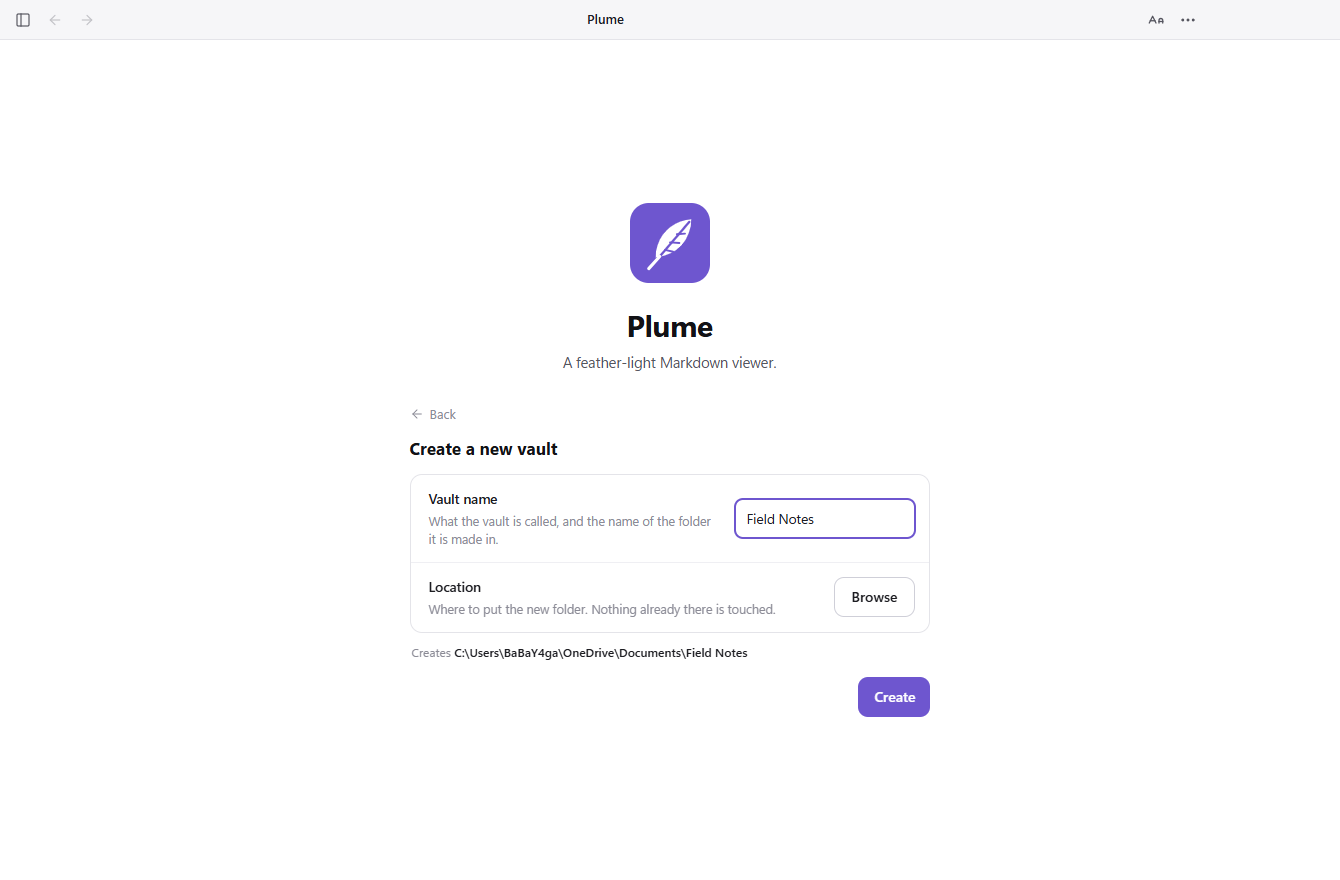
Open a folder as a vault is the same act pointed at notes you already have. Plume
writes .plume/ and does nothing else: the Markdown already in the folder is
adopted where it lies, with nothing moved, copied or re-imported. A folder with three years of
notes in it becomes a vault in place, and every path you have linked to from elsewhere still
points at the same file.
Delete .plume/ and the folder is loose again, with every note untouched.
How many you can have
As many as you like. There is no limit on vaults, and there never has been: one per project, one for work and one for everything else is the ordinary way to use them. They sync at the same time, and two vaults holding a note of the same name are two different notes that never meet.
What is limited is storage in your account — 100 MB on the free plan — and it is one pool shared across every linked vault. A hundred small vaults and one large one look the same to the meter. Local-only vaults and loose folders cost nothing at all, because nothing of them is in the cloud to measure: a vault you never link is unlimited in every sense that matters, bounded only by your own disk.
Moving between them
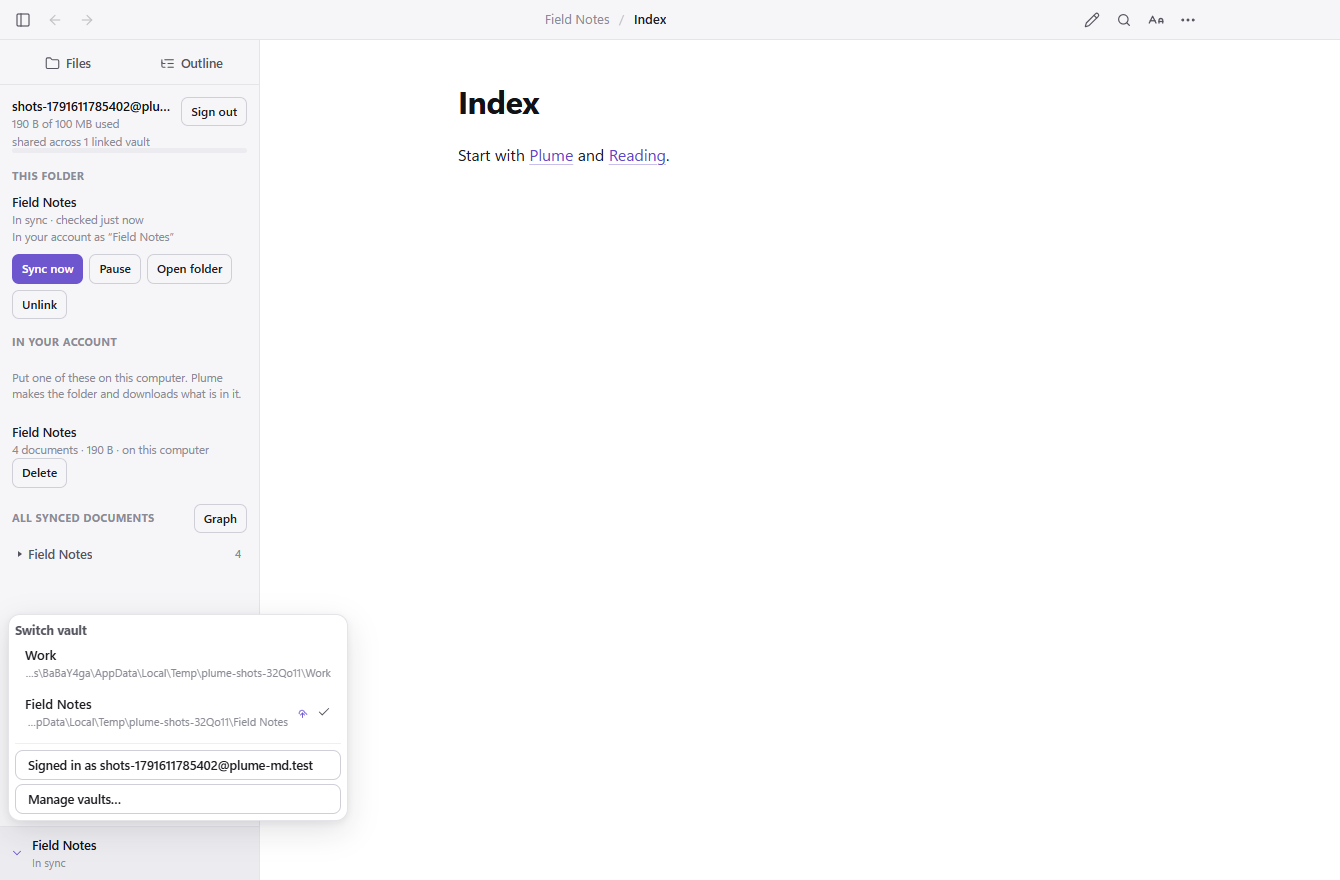
The one you are in is ticked, a linked vault carries a cloud mark, and the list filters as you
type once there are more than a handful. Your account sits under the list, and
Manage vaults… under that goes back to the opening screen.
Ctrl+Shift+V opens the same list from the keyboard, and so does
⋯ → Switch vault….
Where Plume opens
In the vault you were last in, on the note you were last reading. Which note that is lives in
the vault's own workspace.json, which never leaves the computer that wrote it, so
a laptop and a desktop on one vault each come back to their own place in it. If there is
nothing to come back to — a new install, or a vault that has been moved or deleted — you get
the chooser instead, which is also where Manage vaults… goes.
The bar at the foot of the sidebar names the vault you are in. Press it for the others, with
the one you are in ticked, your account beneath them, and the way back to the chooser under
that; Ctrl+Shift+V opens the same list.
Removing a vault from Your vaults is about the list and not about the folder: nothing is deleted, and opening the folder again puts it back on the list. Removing the one you are currently in closes it as well, so the window is never in a vault it says you do not have.
What is in .plume/
.plume/
  vault.json           identity: vault_id, name, created_at
  config.json          settings for this vault
  link.json            the account link (absent on a local-only vault)
  sync/manifest.json   path -> { hash, size, mtime, rev }
  sync/state.json      sync cursor for this device (never synced)
  sync/pending/        uploads waiting on quota
  workspace.json       the note this computer left the vault on (never synced)
  cache/               search index, thumbnails (rebuildable)
It is all plain files sitting beside your notes, so a vault can be copied, backed up or moved
with the folder it is in. state.json and workspace.json describe this
computer rather than the vault, which is why they never go up; cache/ is rebuilt
from the notes whenever it is missing.
Syncing a vault
Syncing is per vault, and a vault syncs only after you have said so. Signing in links nothing and uploads nothing.
Local first
Your notes are files on your computer, and that copy is the one that matters. The cloud is where a vault is carried between computers, not where it lives.
An account
To make one, either:
- In Plume, press the vault name at the foot of the sidebar and choose Sign in to Plume Vault…, then Create account, and enter an email and a password; or
- On the web at plume-md.com/app.html.
Either way it is the same account. A password needs at least 10 characters with a number or a symbol in it.
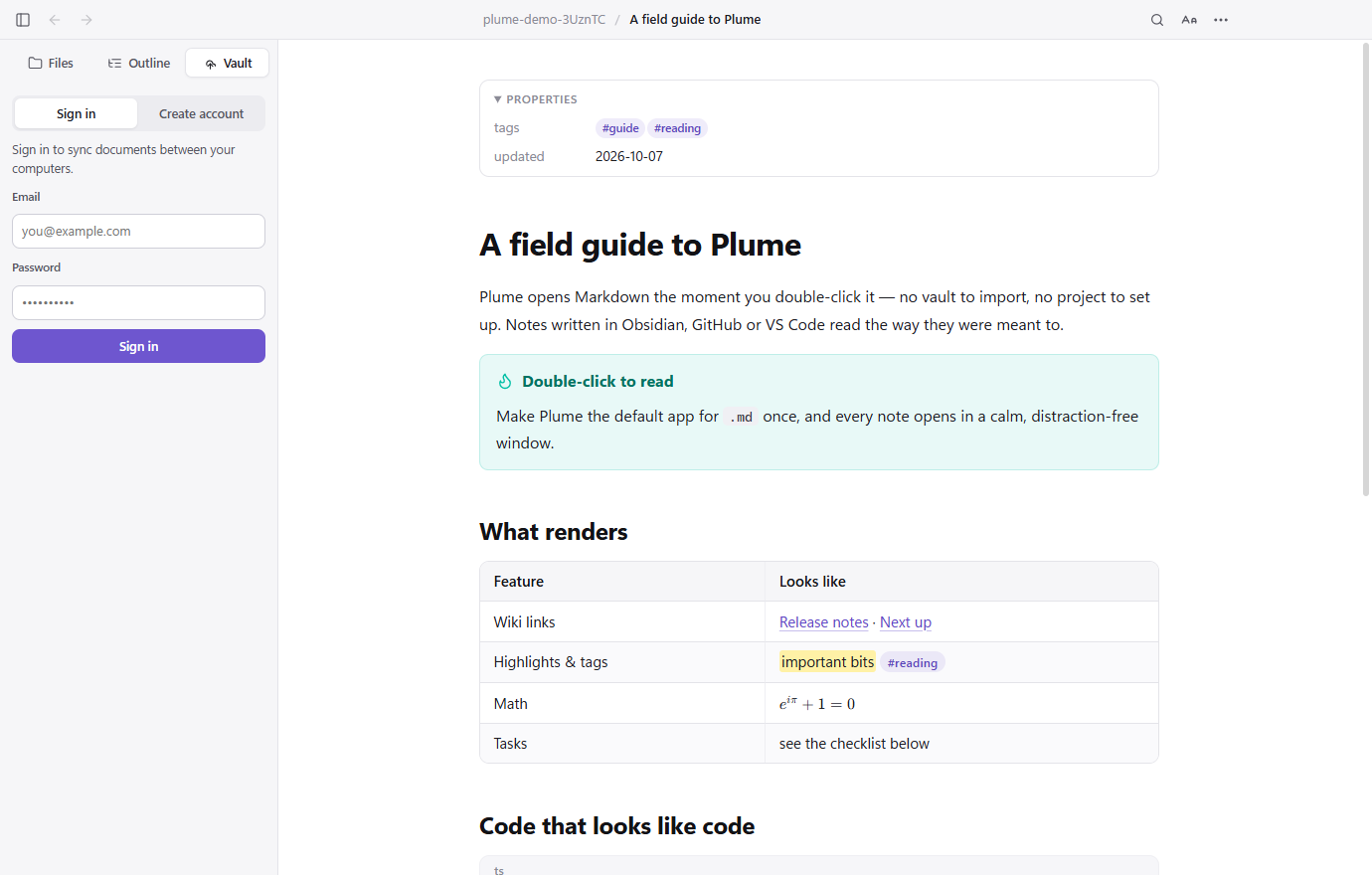
Linking a vault to your account
Open a vault, sign in, and press Link to my account. Plume makes a vault of the same name in your account and keeps the two in step from then on: what you write here goes up, what was written on another computer or in the web vault comes down, and a document deleted on one side goes on the other. Work offline as much as you like; what you wrote goes up when you are next online.
- Both ways, by itself. Plume watches a linked vault while it is open and checks again every few minutes, so an edit made in any editor, on any of your computers, reaches the others without being asked.
- A sync that looks like an accident is stopped. If a round is about to remove ten or more documents, and a third or more of the vault, Plume pauses and says what it was about to do. A drive that has not finished mounting looks exactly like “everything was deleted”.
- A delete that arrives from elsewhere is recoverable. The document is moved into a hidden
.plume-trashfolder inside the vault, not erased. - Folders are kept.
Projects/Plume.mdarrives asProjects/Plume.md, so two notes calledREADMEin different folders never collide. - Only documents and images are uploaded. Markdown, text, CSV, JSON, YAML, and PNG, JPEG, GIF, WebP and AVIF images. Programs, installers, archives and anything else are refused by an allow-list and stay on your computer.
- Pause it at any time, or Unlink the vault. Neither deletes anything.
- Up to 2000 documents and 10 MB per file. Hidden folders,
node_modulesand the like are skipped.
The same vault on a second computer
Install Plume, sign in, and the vault panel lists the vaults in your account. Press Put it here on one, say where it should go, and Plume makes the folder, writes the link into it and downloads what is in it. It is a linked vault on that machine from the moment it arrives.
Storage
A free account comes with 100 MB. It is free in the plain sense — there is no card, no trial and no paid tier.
- There is no limit on vaults. Have as many as you have projects. The 100 MB is a limit on bytes in the cloud, shared across every linked vault, because bytes are the part that costs something.
- Local-only vaults and loose folders cost nothing. They never reach the cloud, so there is nothing to count.
- Running out stops the upload, not your work. The edit still saves to disk exactly as it always does; the upload waits in
.plume/sync/pending/until there is room for it. Nothing is refused, truncated or undone on your machine.
When the same document changes in two places
Both are kept. If a file changed here and somewhere else before the two met, yours stays where it is and the copy that arrived is written beside it, named for the day it arrived and the machine it came from:
idea.md
idea (conflict 2026-10-09 LAPTOP).md
Nothing is overwritten and nothing is merged for you: the two versions sit next to each other and you decide what the note should say. An edit always beats a delete.
Unlinking and deleting
- Unlink stops the syncing and keeps both copies — the folder on your computer, which goes back to being a local-only vault, and the vault in your account, which still uses your storage. Unlinking frees nothing, because it throws nothing away.
- Delete vault removes a vault from your account. It is a separate act with its own name on it, it is the only thing that frees storage, and it leaves the folders on your computers alone: they stay where they are, as local-only vaults.
Plume on the web
plume-md.com/notes.html is your vaults in a browser tab: the vaults
on the left, the documents in the one you are looking at, and a note in the middle —
rendered by the same pipeline the desktop app uses, so it reads the same. Press Edit
for the Markdown, Ctrl+S to save it back. Ctrl+K searches,
Ctrl+E toggles the editor, and the address bar carries the note you are on, so a
link to one is a link anybody signed in can follow.
It shows cloud vaults, and only those. A browser cannot reach the folders on your disk, so loose folders and local-only vaults are not there — they were never uploaded. Link a vault from the desktop app and it appears here; unlink it and it stops. Nothing else about the vault model changes: the limit is still bytes rather than vaults, and the documents are still plain Markdown.
Saving from the browser carries the revision the note was opened at. If the same note changed somewhere else in the meantime, the save is refused and says so rather than writing over work that was not on screen.
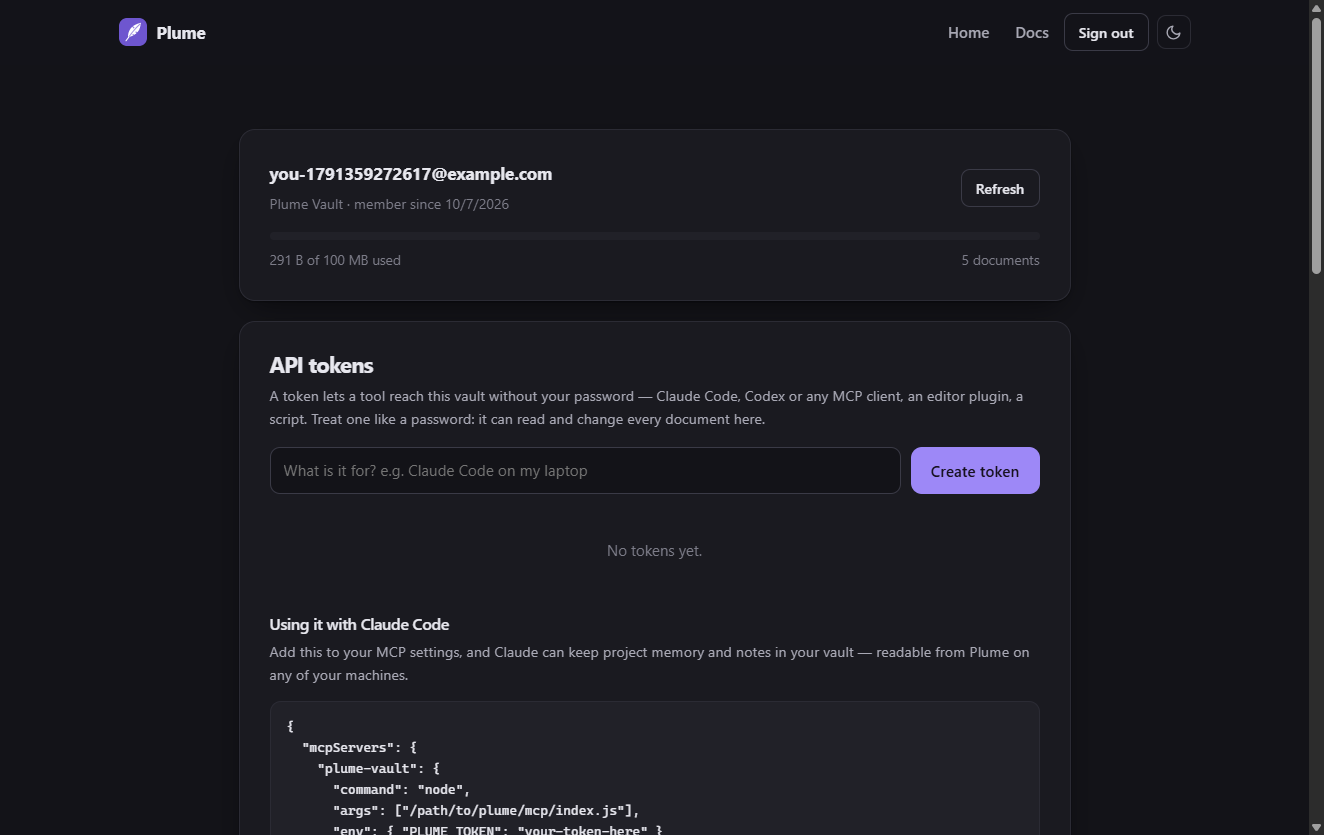
plume-md.com/app.html is the account beside it: storage, API tokens, the graph, and the vaults in your account that you can put on this computer.
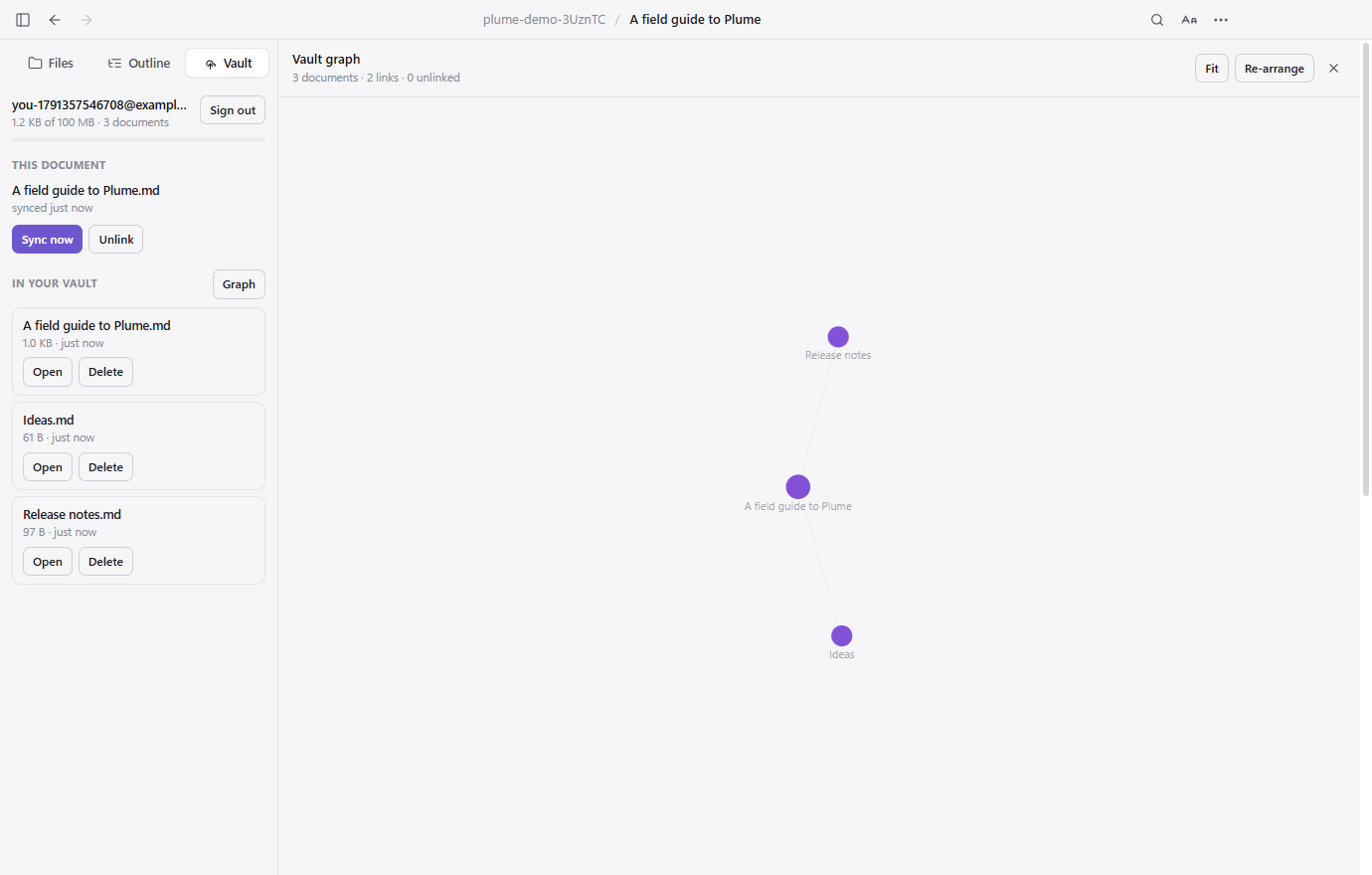
The graph
The Graph button draws how the documents in a vault link to each other — wiki links, embeds and ordinary Markdown links all count; links inside code blocks do not. It reads the vault’s own index, so it works on a local-only vault with no account and no connection.
- Drag a document to move it, scroll to zoom, drag the background to pan.
- Hover one to dim everything it is not connected to.
- Double-click to open it.
- Bigger circles have more links. Colours group documents by folder.
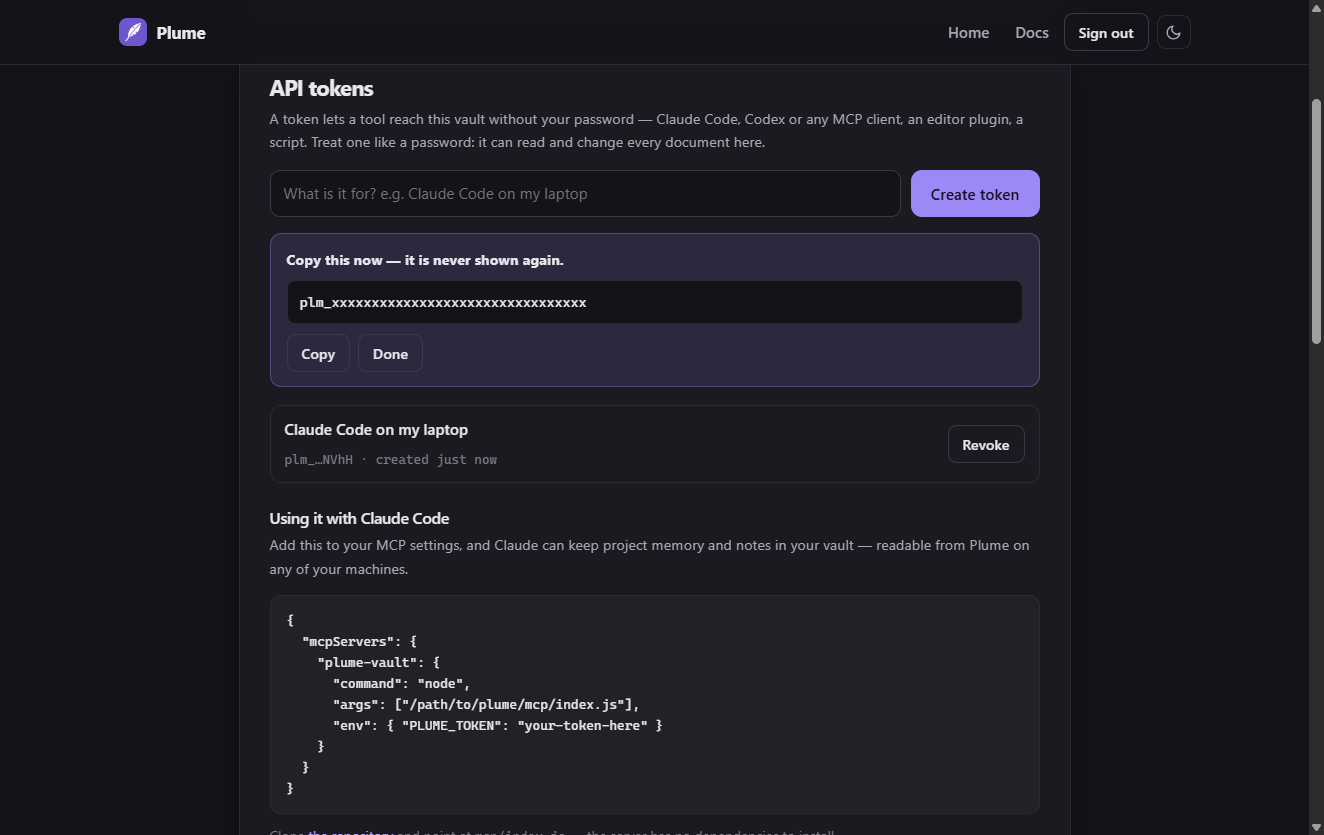
API tokens
A token lets something that is not a browser reach your vault: an AI assistant, an editor plugin, a script. Create one on the web vault under API tokens, give it a name you will recognise later, and copy it — it is shown once and never again, because only its hash is stored.
Used directly, the API is ordinary HTTP:
curl https://plume-md.com/api/vault/list \
  -H "Authorization: Bearer plm_your_token"

curl -X PUT "https://plume-md.com/api/vault/file?path=notes/today.md" \
  -H "Authorization: Bearer plm_your_token" \
  --data-binary @today.md
Claude Code, Codex and MCP
Plume Vault ships an MCP server, so an AI assistant can keep project memory, decisions and notes somewhere that outlives the session — and that you can read in Plume on any of your machines afterwards.
Create a token, then add this to your MCP client's configuration:
{
  "mcpServers": {
    "plume-vault": {
      "command": "node",
      "args": ["/path/to/plume/mcp/index.js"],
      "env": { "PLUME_TOKEN": "plm_your_token" }
    }
  }
}
Clone the repository and point
args at mcp/index.js inside it. There is nothing to install:
the server has no dependencies. Once it is published to npm you will be able to use
npx -y @plume-md/vault-mcp instead.
The assistant gets eight tools:
| Tool | Does |
|---|---|
list_notes | Lists what is in the vault, optionally under one folder |
read_note | Reads one document |
write_note | Creates or replaces one |
append_note | Adds to the end — safer than replacing, for a running log |
search_notes | Searches the text of every document and returns matching lines |
delete_note | Removes one |
vault_graph | Shows the links, including ones pointing at documents that do not exist yet |
vault_status | How much storage is used |
A shape that works well
Keep one folder per project and let the assistant write to it, exactly as you would with a notes repository:
projects/plume/decisions.md     why things are the way they are
projects/plume/architecture.md  how it fits together
projects/plume/log.md           appended to as work happens
people/notes.md                 who said what, and when
Write the links in [[double brackets]] and the vault graph draws the shape of
what the assistant has remembered.
Editing
Click a paragraph. It becomes editable right where it sits, while everything else on the page stays rendered, so nothing moves under you. Type, click somewhere else, and it is a paragraph again. That is live preview, and it is on unless you turn it off in Reading settings → Live preview.
The markers get out of the way. Inside the paragraph you are editing,
**bold** reads as bold — until you put the caret in the word, and the
stars are back to be edited. Move away and they go again. The same for italics,
strikethrough, inline code, links, images and headings, so you read the paragraph as it will
be while you are still writing Markdown into the same file. A heading reveals its
# when the caret is in the # itself, which is where you change its
level.
For the whole file as plain text, press the pencil in the toolbar or Ctrl+E.
Both write into the same text, so you can move between them mid-sentence without losing
anything, and the rendered document always shows what you have typed — saved or not.
There is no hidden formatting model between what you type and what is saved.
Ctrl+Ssaves, wherever you are typing.Escgoes back to reading and keeps what you typed.- A block opens whole. A list, a table or a code block is edited as the one thing it is. Diagrams, maths and images stay rendered — a click on those does nothing, so a stray click cannot replace a diagram with its source.
- Arrow keys carry on into the next block, as though the whole document were one editor. Clicking past the end of the document starts a new paragraph there.
- Tab indents and Shift+Tab outdents, across a whole selection.
- Enter continues a list — bullets, numbers and task boxes — and ends it when you press Enter on an empty item.
- Selecting text does not start an edit, so you can still read with the mouse. Links still follow on a click.
Ctrl+Shift+Estill hands the file to VS Code, Cursor or your system editor.
What it will not do to your work
- Nothing is written until you ask. Typing changes nothing on disk.
- Only the lines you edited are rewritten. Editing one paragraph replaces that paragraph's own lines and passes the rest of the file through exactly as it was — including anything Plume does not render.
- Unsaved work is never dropped silently. A dot appears beside the file name while there are unsaved changes. Going back to reading keeps them; moving to another document, or re-reading the file from disk, asks first.
- A file changed elsewhere cannot overwrite you. If something else writes to the document while you are editing it — another editor, or a sync from another machine — Plume stops, tells you, and lets you choose which version to keep.
- Saving does not fight live reload. Plume recognises its own write, so the editor is not reloaded out from under you.
Git sync
Keep a folder of notes in a Git repository: pull what changed elsewhere, commit what changed here, push. It is in ⋯ → Git sync…, and it is part of having a Plume Vault account.
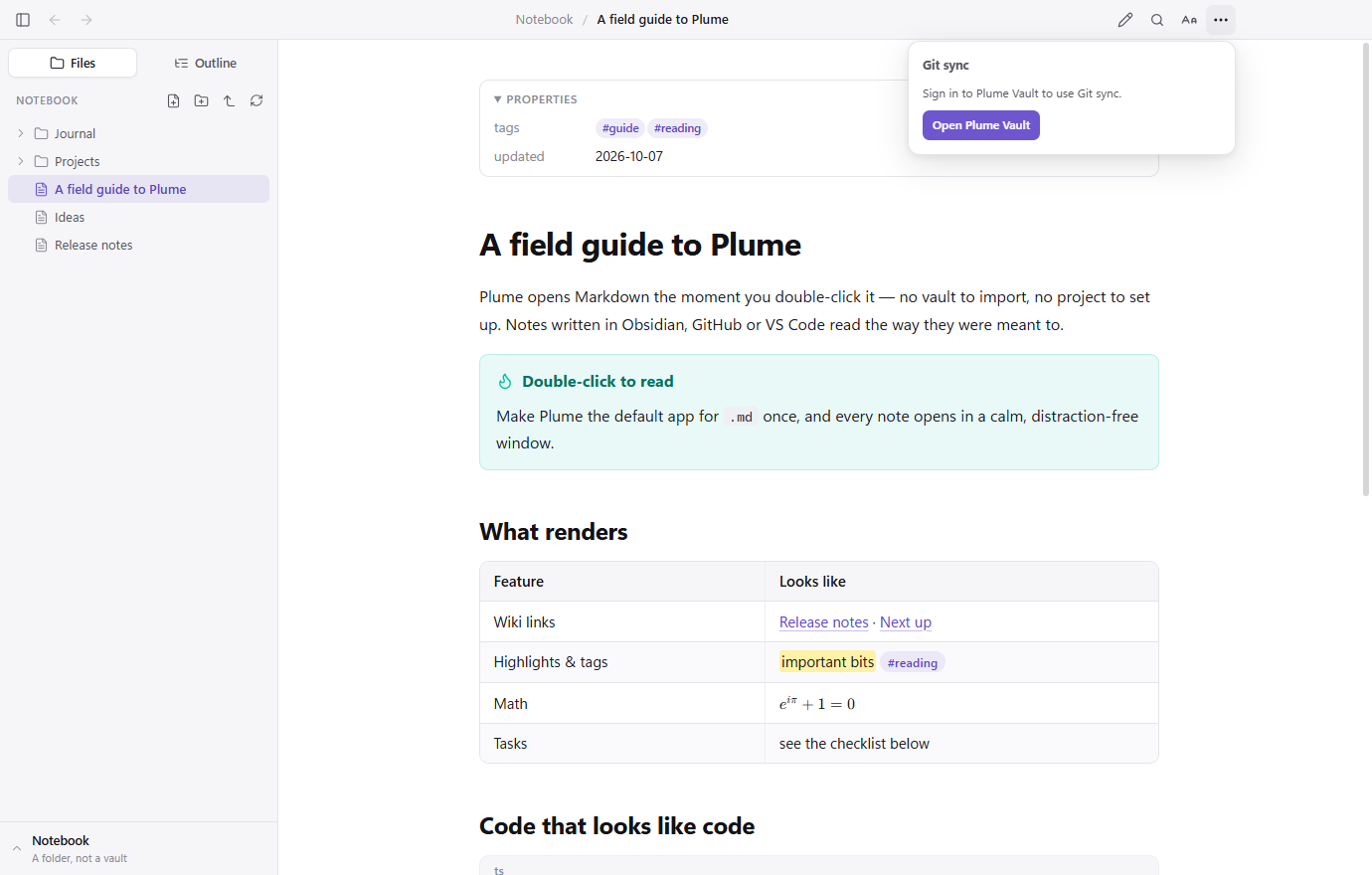
- Open ⋯ → Git sync… and choose the folder your notes are in.
- Paste the repository address —
https://github.com/you/notes.gitor[email protected]:you/notes.git— and press Connect. An empty folder is cloned into; a folder that already has notes in it keeps them and gains a remote. - Press Sync now. Plume commits what changed, rebases on whatever arrived, and pushes.
Plume never asks for a token, and never stores one. It drives the git
already on your machine, so your credentials stay where you already put them — the system
credential helper, an SSH agent, a deploy key. That is also why conflicts, submodules, LFS,
hooks and commit signing all behave exactly as they do in your terminal: it is the same git.
The one requirement is that Git is installed; the panel says so plainly if it is not.
It rebases rather than merges, so a folder of notes does not collect a merge commit every few minutes. If the two sides genuinely conflict, Plume stops and tells you — resolve it in the folder the way you normally would, then sync again. A repository left half-way through somebody else's merge or rebase is never touched.
Git sync works on any folder, vault or not, and it can point at the same folder as vault sync. Neither knows about the other, and neither needs to: one keeps a copy in your account, the other keeps a history in your repository.
If Git has no name and email configured — common if you set them per repository rather than globally — Plume gives a repository it created an identity from your vault account, so the first commit does not fail. It never changes your global configuration, and never overwrites an identity that is already there.
Updates
Plume looks for a newer release shortly after it starts and offers it in a bar at the top of the window. Nothing is downloaded until you press Install, and nothing is installed without you asking. Not now means not again for that version.
SHA256SUMS.txt alongside the installers. Plume downloads the installer, hashes it,
and compares it against that file before letting it run — a download that does not match is
deleted rather than executed. It will also only ever download from this project's own release
URLs, over HTTPS.
On macOS and Linux the bar offers the download page instead of installing: an unsigned macOS app is not allowed to replace itself, and Linux packages belong to your package manager.
Keyboard
On macOS, use ⌘ in place of Ctrl and ⌥ in place of Alt.
| Action | Keys |
|---|---|
| Open file | Ctrl+O |
| New window | Ctrl+N |
| New note in the folder shown | Ctrl+Shift+N |
| Rename in the file tree | F2 |
| Delete in the file tree | Del to the trash, Shift+Del for good |
| Close window | Ctrl+W |
| Find / next / previous | Ctrl+F, Enter, Shift+Enter |
| Back / forward | Alt+← / Alt+→ |
| Toggle sidebar | Ctrl+\ |
| Text size | Ctrl+= / Ctrl+- / Ctrl+0 |
| Reload | F5 |
| Edit one block, where it is | click it |
| Edit the whole file as text | Ctrl+E |
| Save | Ctrl+S |
| Open in your editor | Ctrl+Shift+E |
Ctrl+P | |
| Full screen | F11 |
Privacy and safety
- Without an account, nothing leaves your computer. Plume has no telemetry and makes no network requests while reading a file.
- Markdown is untrusted input. Documents are rendered in a sandboxed window with a strict Content-Security-Policy, sanitised with DOMPurify. Scripts never run, external links open in your browser, and links to programs, apps and scripts are only ever revealed in your file manager — never launched. A document cannot make Plume load files from other computers on your network.
- Account tokens never reach the window that renders your documents. Every network call happens in Plume's main process, so even a flaw in the renderer could not read one.
- Passwords are hashed with scrypt and never stored or logged in the clear. Your session token is kept encrypted at rest using your system keychain.
- Vault documents sit in private storage that nobody else can list. They are not indexed, shared or sold.
- Changing your password signs out every other device.
Troubleshooting
Windows warns that it protected my PC
The build is not code-signed yet. Choose More info → Run anyway. Every build is produced in public by GitHub Actions from the tagged source, so you can check what went into it.
macOS will not open it
Plume is not notarized yet. Right-click it in Applications → Open → Open. On macOS 15 and later, try once, then go to System Settings → Privacy & Security and click Open Anyway. Or run xattr -cr /Applications/Plume.app.
Making Plume the default for .md
- Windows: right-click a Markdown file → Open with → Choose another app → Plume → Always. Or use
⋯ → Make Plume the default for .mdinside Plume. - macOS: select a
.mdfile in Finder → Get Info → Open with: Plume → Change All… - Linux: choose Plume under Open With in your file manager and set it as the default.
Linux: it will not start on Ubuntu 24.04
Use the .deb rather than the AppImage — it installs the AppArmor profile Electron apps need there.
"Your session expired"
Sessions last 14 days. Sign in again from the Plume Vault bar. Changing your password ends every session on purpose.
Something is wrong
Open an issue on GitHub with your system and what you were doing. Plume is MIT-licensed and the source is all there.