 Plume
Plume
Documentation
Plume is a Markdown reader. Everything below the first section is optional — the app works fully with no account at all.
Getting started
- Install it. Pick your system on the download page. The builds are not code-signed yet, so Windows and macOS warn on first run; the download page explains how to get past that for each system.
- Open a document. Double-click any
.mdfile, drag one onto the window, or pressCtrl+O. - Make it the default if you want every Markdown file to open here. Windows and macOS only let you choose that yourself — see Troubleshooting.
That is the whole app. No vault to create, no project to open, no account.
Reading documents
Plume opens one document per window. Opening a second file while Plume is running gives it its own window instantly, with no cold start.
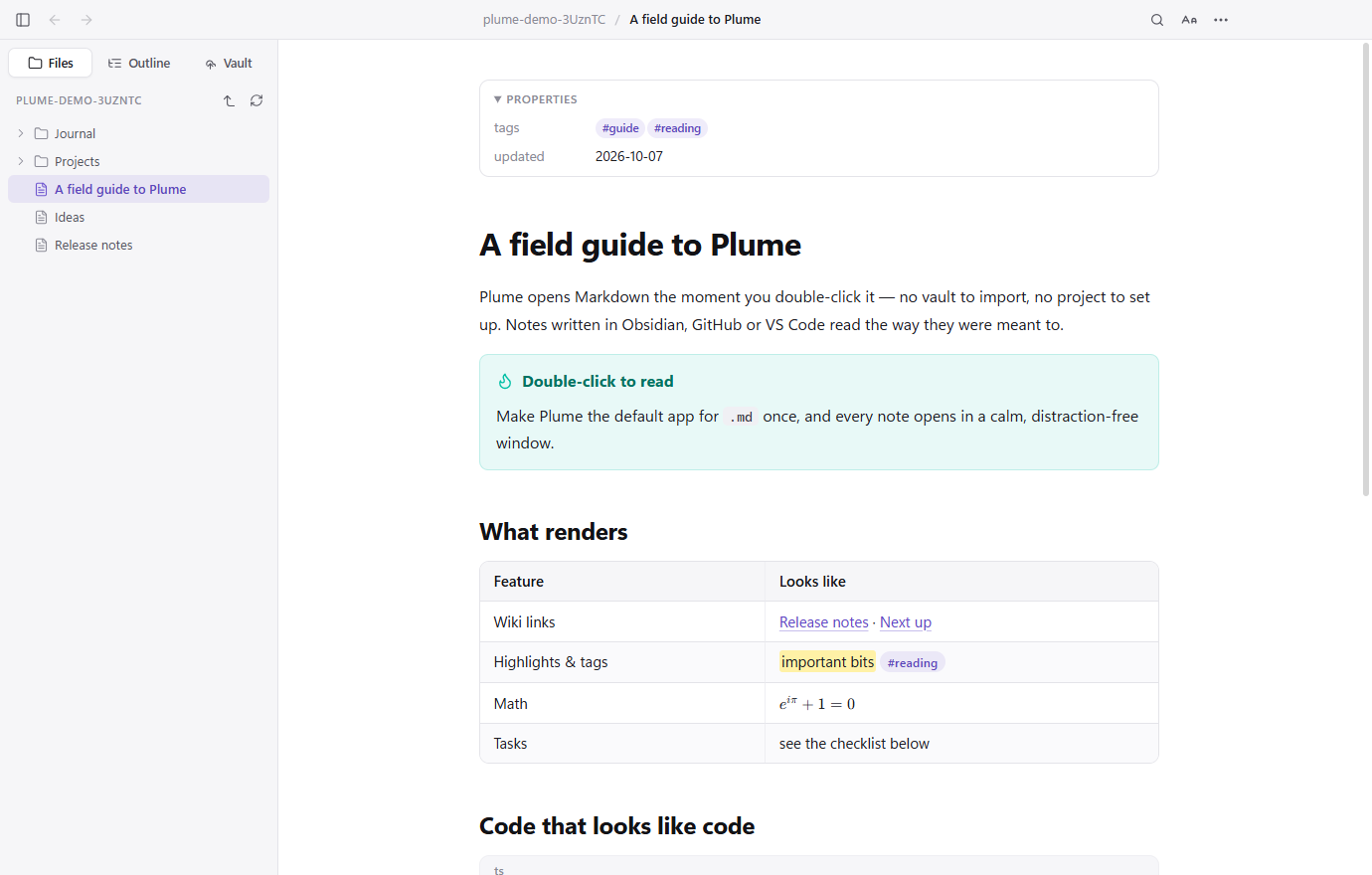
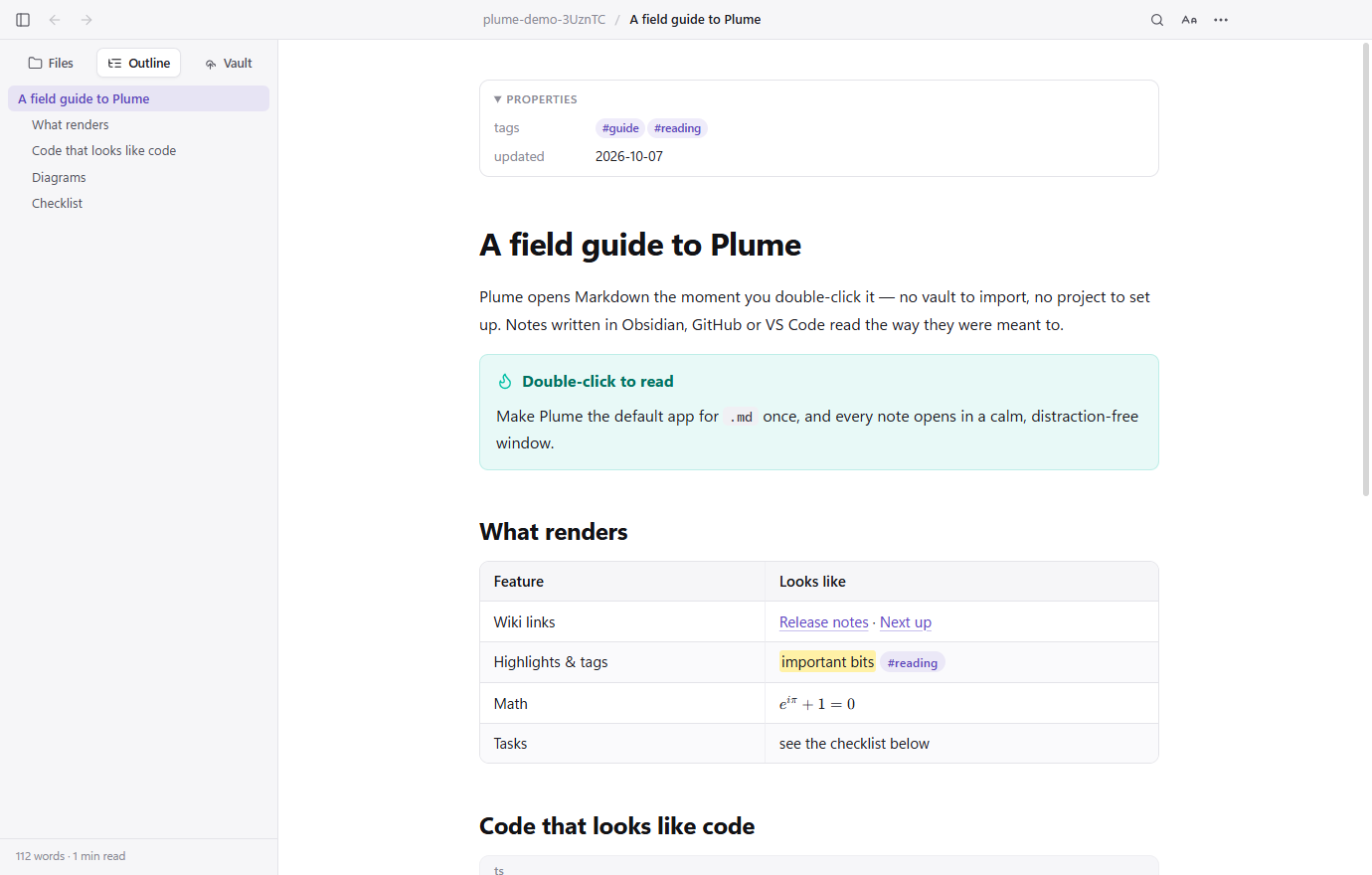
- The sidebar has two tabs — Files (the folder around your document, or the whole vault if it is in one) and Outline (every heading, with a reading time) — and the Plume Vault bar at its foot. Toggle the sidebar with
Ctrl+\. - Reading settings (the
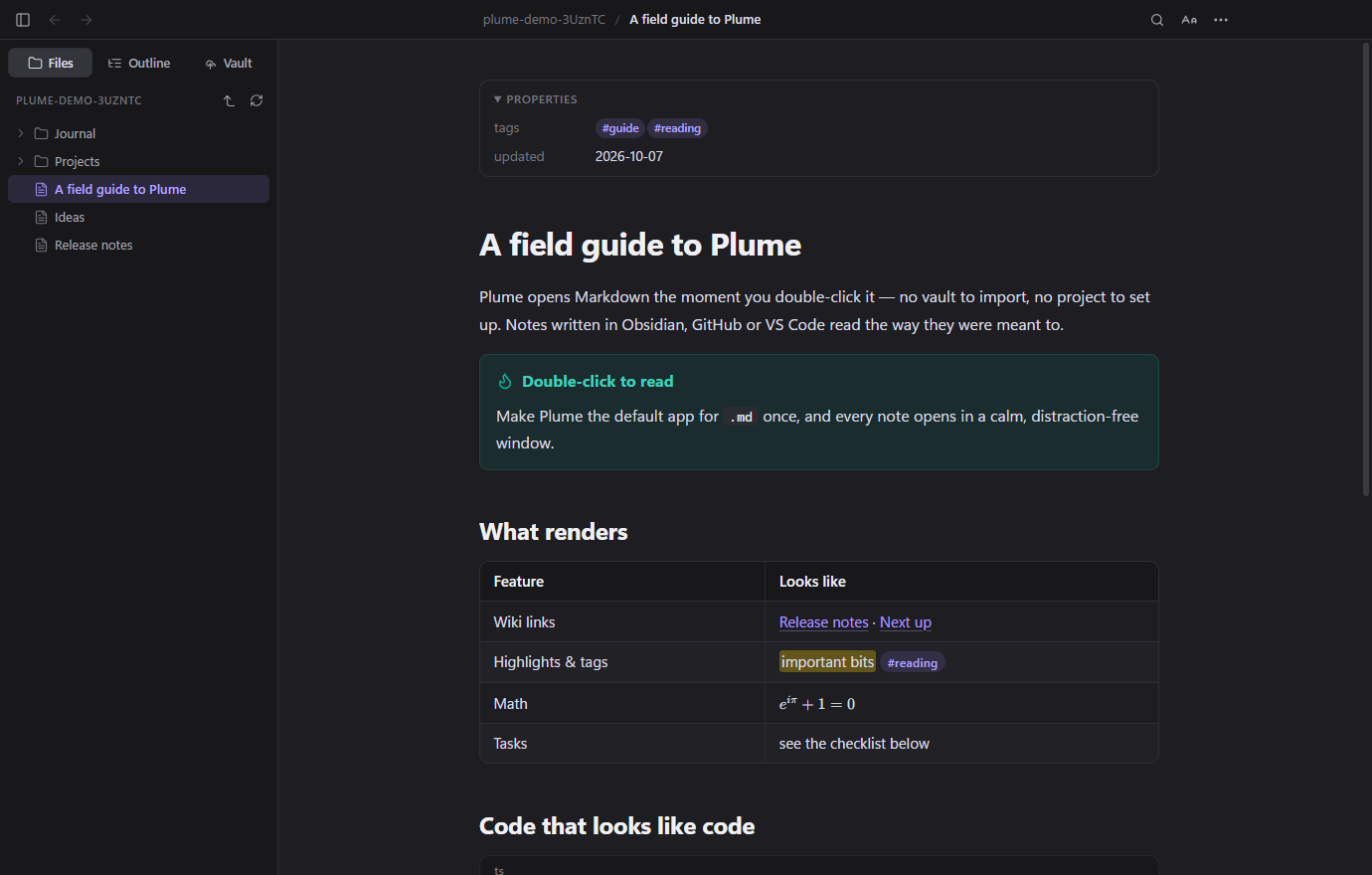
Aabutton) set the theme, text size, reading width, serif or sans, and whether a single newline is a line break. - Live reload: save the file in any editor and Plume updates in place, keeping your scroll position. Write in your editor, read here.
- Find in page with
Ctrl+F; back and forward between linked notes withAlt+←andAlt+→, or your mouse side buttons. - Print and Export as PDF from the
⋯menu. PDFs get a real outline built from your headings, and diagrams are redrawn in the light theme for paper.
Obsidian notes
Plume reads the Obsidian dialect, so you can open a vault note without opening the vault:
| What you write | What Plume does |
|---|---|
[[Note]] | Links to it anywhere in the vault, ignoring letter case |
[[Note#Heading|alias]] | Jumps to that heading, shown as the alias |
![[image.png|300]] | Embeds the image at that width |
![[Note#Section]] | Pulls that section in |
> [!tip] | A callout; [!warning]- is foldable |
==highlight== | Highlights it |
#tag, %%comment%%, ^block-id | Tags, hidden comments, block references |
| Front matter | Shown as Properties at the top |
GitHub-flavoured Markdown works too: tables, task lists, footnotes, definition lists, emoji shortcodes, syntax highlighting, KaTeX maths and Mermaid diagrams.
For a note inside a real Obsidian vault, ⋯ → Open in Obsidian hands it over.
Plume Vault
A vault is 100 MB of storage attached to an account. It is free — there is no card, no trial and no paid tier — and it is entirely optional.
To create one, either:
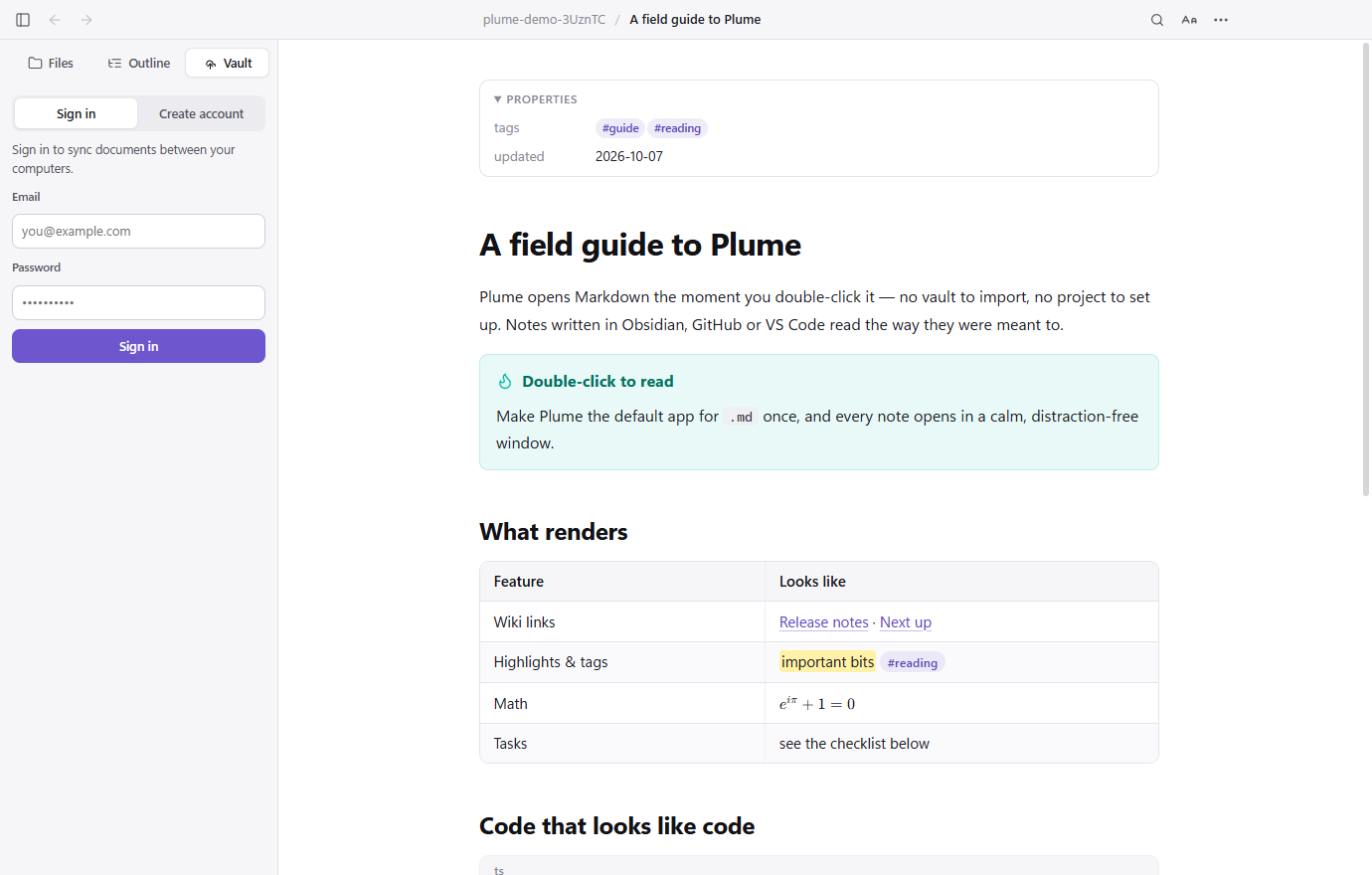
- In Plume, open the Plume Vault bar at the foot of the sidebar, choose Create account, and enter an email and a password; or
- On the web at plume-md.com/app.html.
Either way it is the same vault. A password needs at least 10 characters with a number or a symbol in it.
Syncing
There are two ways to get a document into your vault. A synced folder keeps itself up to date and is what most people want; syncing one document is there for notes that live outside that folder.
A synced folder
Open the Plume Vault bar at the foot of the sidebar, sign in, and choose a folder. From then on everything inside it — notes, images and sub-folders — goes up by itself and stays up to date, keeping the same shape it has on disk.
- Folders are kept.
Projects/Plume.mdarrives asProjects/Plume.md, so two notes calledREADMEin different folders never collide. - Only documents and images are uploaded. Markdown, text, CSV, JSON, YAML, and PNG, JPEG, GIF, WebP and AVIF images. Programs, installers, archives and anything else are refused by an allow-list and stay on your computer.
- It watches while Plume is open and checks again every few minutes, so edits made in any editor go up on their own.
- Pause it at any time, or Stop syncing the folder. Stopping deletes nothing: the folder stays on your computer and what is already in the vault stays in the vault.
- Up to 2000 documents and 10 MB per file. Hidden folders,
node_modulesand the like are skipped.
One document at a time
- Open the document you want.
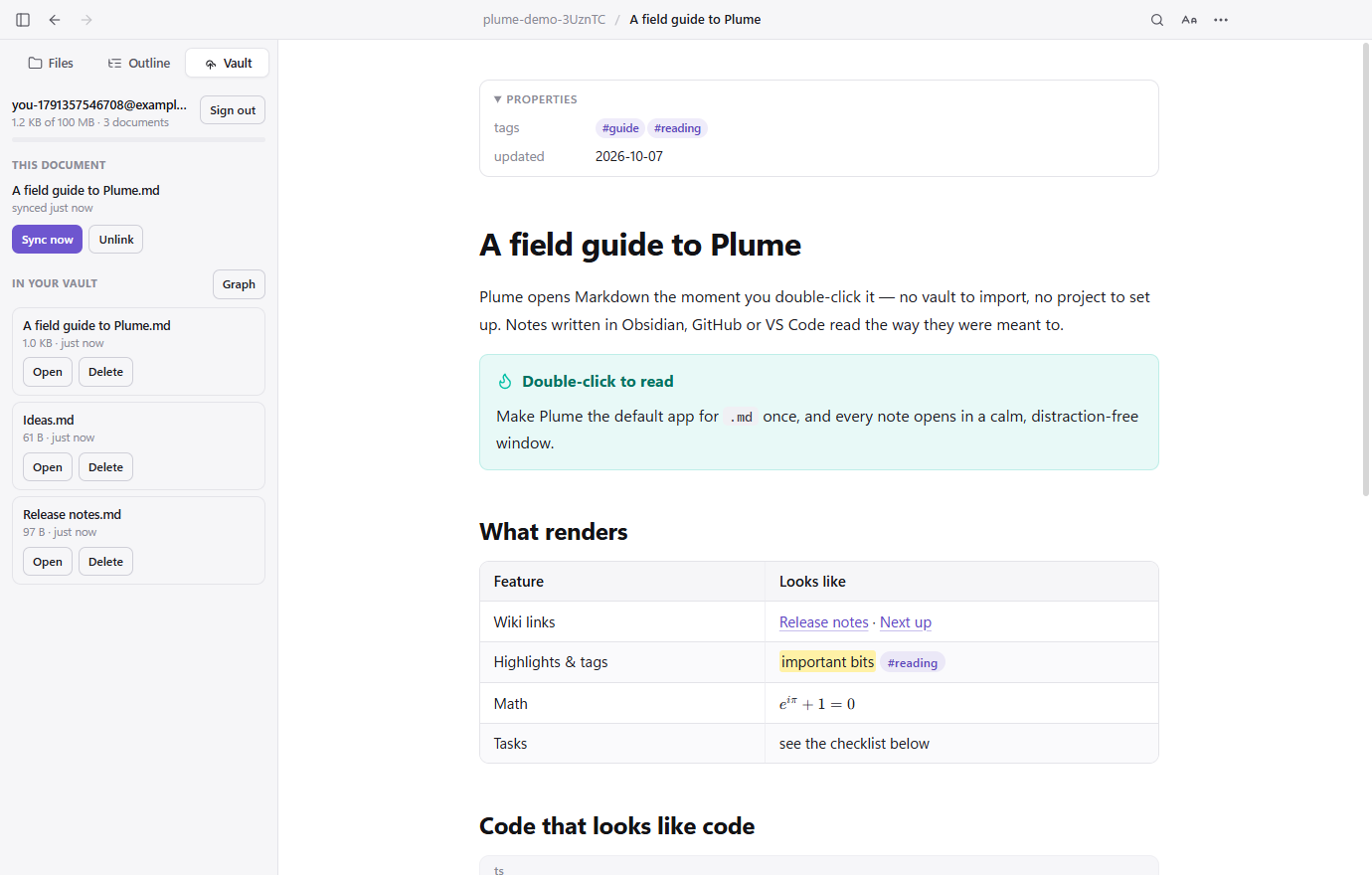
- Open the Plume Vault bar. Under This document, check the name it will take in the vault and press Sync to vault.
- That document is now linked: the panel shows when it last synced, and Sync now sends your latest version up.
- On another computer, sign in, find it under In your vault and press Open. Plume asks where to save it, then opens it — and links it there too.
The name offered is the path from the folder shown in the sidebar, not just the file name, for the same reason: so nothing collides. If something already in the vault uses that name, Plume says so before replacing it.
When the same document changes in two places
Every upload carries the revision this machine last saw. If the vault copy has moved on since then — because you edited it on your laptop — Plume refuses the upload rather than flattening that work, and asks what to keep:
- Save the vault copy beside mine downloads the other version next to your file as
Note (vault copy 2026-10-07-14-30).md, so you have both and can merge them yourself. - Replace the vault copy sends yours up and overwrites the other one. Only pick this when you know yours is the one you want.
The web vault
plume-md.com/app.html shows the same documents in a browser: read them, download them, drop new ones in, and delete them. Useful on a machine where Plume is not installed.
The graph
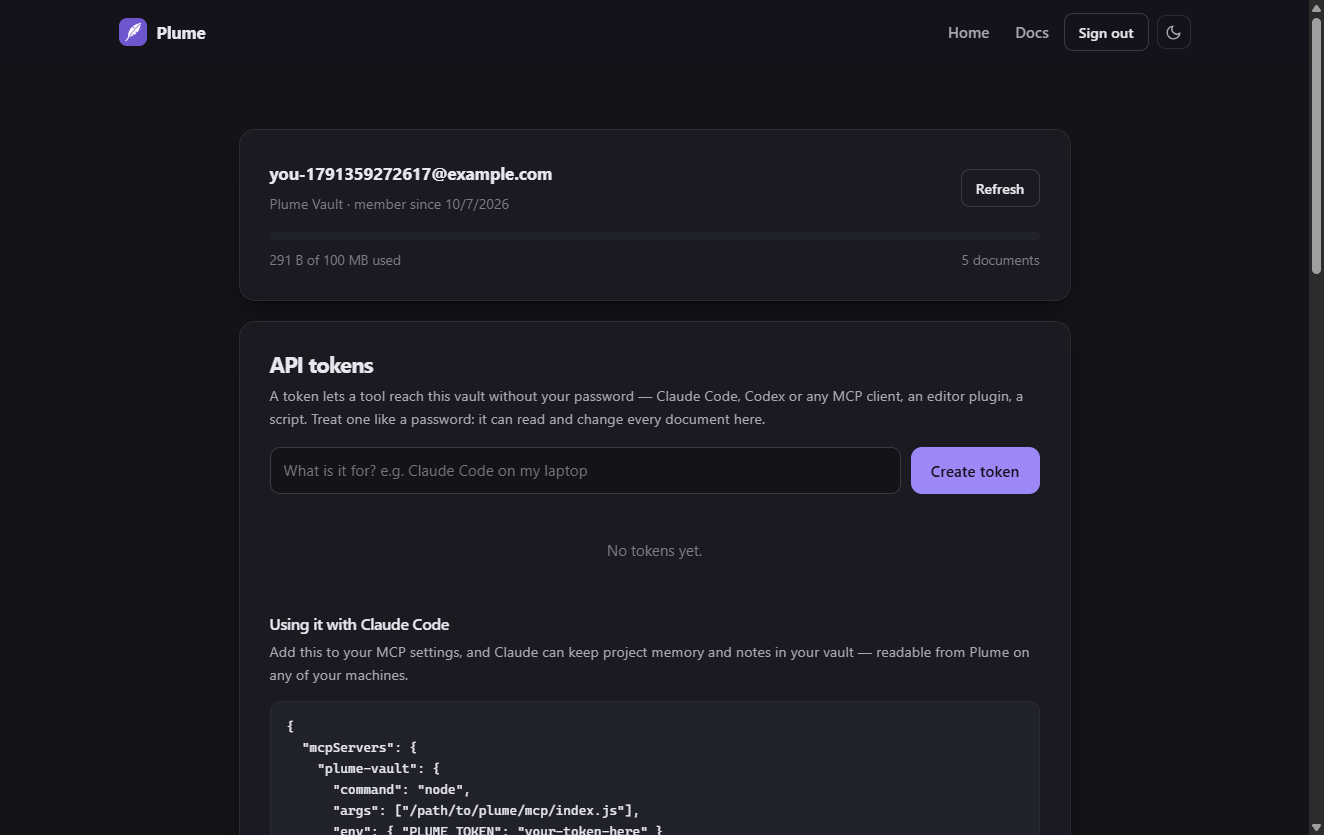
The Graph button in the vault panel draws how your documents link to each other — wiki links, embeds and ordinary Markdown links all count; links inside code blocks do not.
- Drag a document to move it, scroll to zoom, drag the background to pan.
- Hover one to dim everything it is not connected to.
- Double-click to open it.
- Bigger circles have more links. Colours group documents by folder.
API tokens
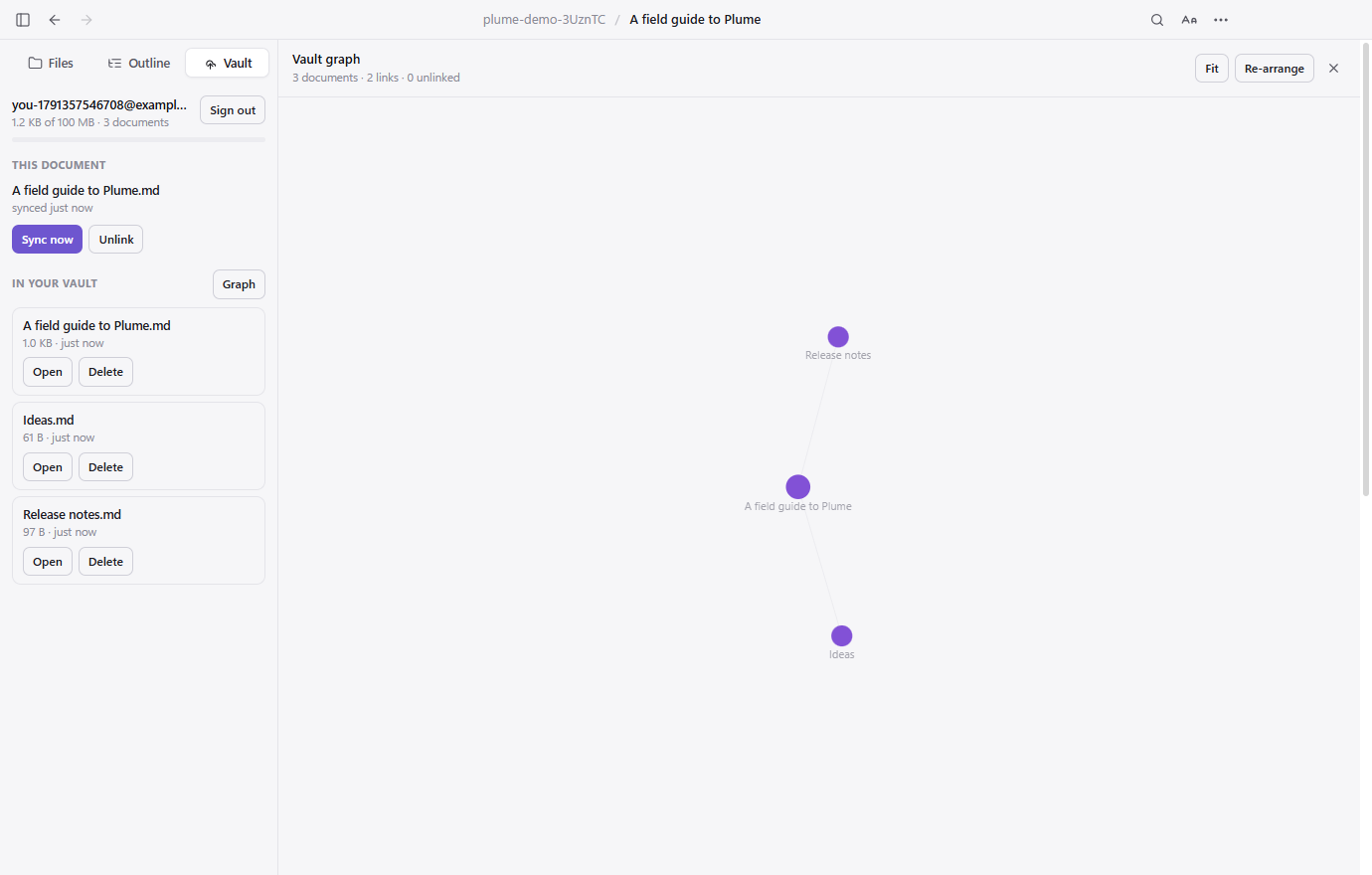
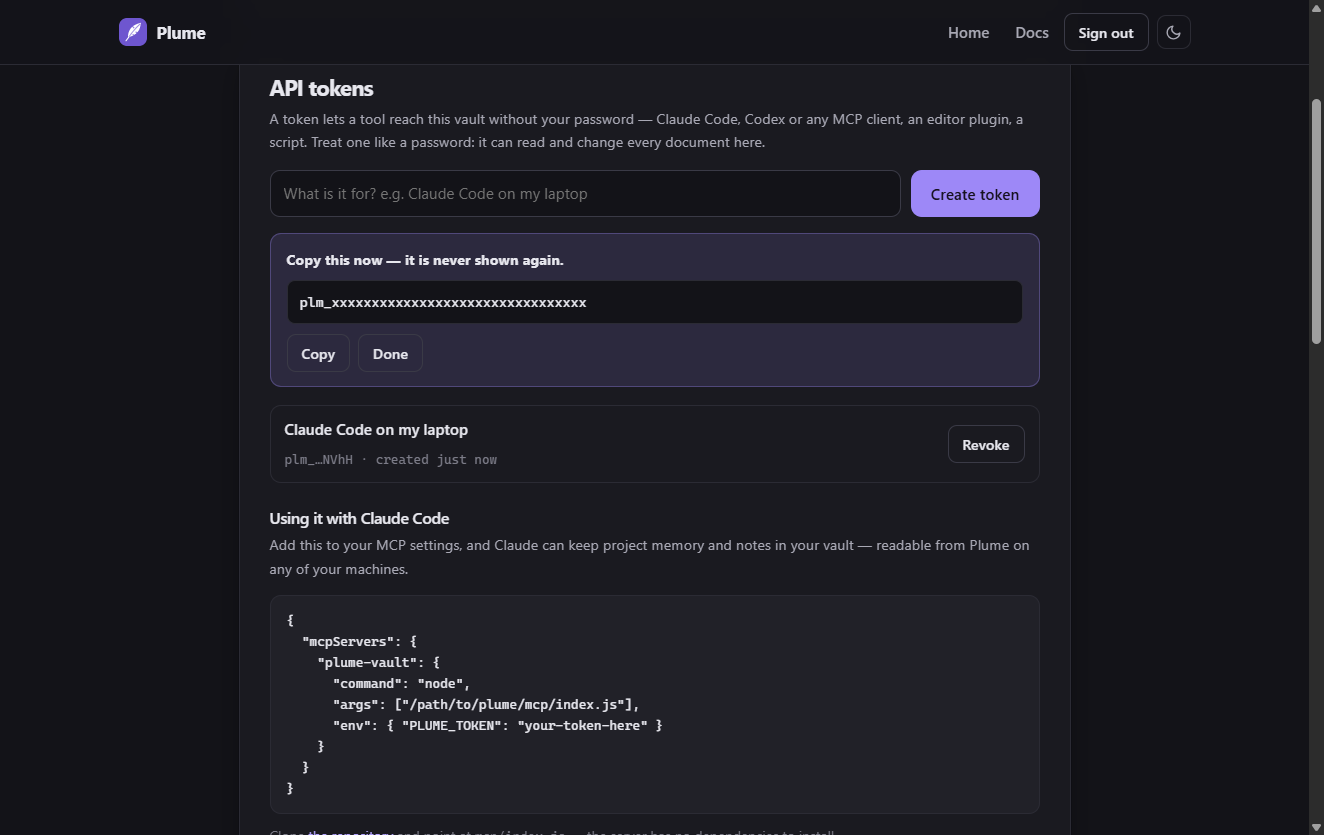
A token lets something that is not a browser reach your vault: an AI assistant, an editor plugin, a script. Create one on the web vault under API tokens, give it a name you will recognise later, and copy it — it is shown once and never again, because only its hash is stored.
Used directly, the API is ordinary HTTP:
curl https://plume-md.com/api/vault/list \
  -H "Authorization: Bearer plm_your_token"

curl -X PUT "https://plume-md.com/api/vault/file?path=notes/today.md" \
  -H "Authorization: Bearer plm_your_token" \
  --data-binary @today.md
Claude Code, Codex and MCP
Plume Vault ships an MCP server, so an AI assistant can keep project memory, decisions and notes somewhere that outlives the session — and that you can read in Plume on any of your machines afterwards.
Create a token, then add this to your MCP client's configuration:
{
  "mcpServers": {
    "plume-vault": {
      "command": "node",
      "args": ["/path/to/plume/mcp/index.js"],
      "env": { "PLUME_TOKEN": "plm_your_token" }
    }
  }
}
Clone the repository and point
args at mcp/index.js inside it. There is nothing to install:
the server has no dependencies. Once it is published to npm you will be able to use
npx -y @plume-md/vault-mcp instead.
The assistant gets eight tools:
| Tool | Does |
|---|---|
list_notes | Lists what is in the vault, optionally under one folder |
read_note | Reads one document |
write_note | Creates or replaces one |
append_note | Adds to the end — safer than replacing, for a running log |
search_notes | Searches the text of every document and returns matching lines |
delete_note | Removes one |
vault_graph | Shows the links, including ones pointing at documents that do not exist yet |
vault_status | How much storage is used |
A shape that works well
Keep one folder per project and let the assistant write to it, exactly as you would with a notes repository:
projects/plume/decisions.md     why things are the way they are
projects/plume/architecture.md  how it fits together
projects/plume/log.md           appended to as work happens
people/notes.md                 who said what, and when
Write the links in [[double brackets]] and the vault graph draws the shape of
what the assistant has remembered.
Editing
Plume is a reader first, so editing is a mode you turn on rather than the state you are always
in. Press the pencil in the toolbar, or Ctrl+E, and the document becomes editable:
the raw Markdown, in a plain editor, with no hidden formatting model between what you type and
what is saved.
Ctrl+Ssaves.Escgoes back to reading.- Tab indents and Shift+Tab outdents, across a whole selection.
- Enter continues a list — bullets, numbers and task boxes — and ends it when you press Enter on an empty item.
Ctrl+Shift+Estill hands the file to VS Code, Cursor or your system editor.
What it will not do to your work
- Nothing is written until you ask. Typing changes nothing on disk.
- Unsaved work is never dropped silently. A dot appears beside the file name while there are unsaved changes, and leaving edit mode asks before discarding them.
- A file changed elsewhere cannot overwrite you. If something else writes to the document while you are editing it — another editor, or a sync from another machine — Plume stops, tells you, and lets you choose which version to keep.
- Saving does not fight live reload. Plume recognises its own write, so the editor is not reloaded out from under you.
Updates
Plume looks for a newer release shortly after it starts and offers it in a bar at the top of the window. Nothing is downloaded until you press Install, and nothing is installed without you asking. Not now means not again for that version.
SHA256SUMS.txt alongside the installers. Plume downloads the installer, hashes it,
and compares it against that file before letting it run — a download that does not match is
deleted rather than executed. It will also only ever download from this project's own release
URLs, over HTTPS.
On macOS and Linux the bar offers the download page instead of installing: an unsigned macOS app is not allowed to replace itself, and Linux packages belong to your package manager.
Keyboard
On macOS, use ⌘ in place of Ctrl and ⌥ in place of Alt.
| Action | Keys |
|---|---|
| Open file | Ctrl+O |
| New window | Ctrl+N |
| Close window | Ctrl+W |
| Find / next / previous | Ctrl+F, Enter, Shift+Enter |
| Back / forward | Alt+← / Alt+→ |
| Toggle sidebar | Ctrl+\ |
| Text size | Ctrl+= / Ctrl+- / Ctrl+0 |
| Reload | F5 |
| Edit this document | Ctrl+E |
| Save | Ctrl+S |
| Open in your editor | Ctrl+Shift+E |
Ctrl+P | |
| Full screen | F11 |
Privacy and safety
- Without an account, nothing leaves your computer. Plume has no telemetry and makes no network requests while reading a file.
- Markdown is untrusted input. Documents are rendered in a sandboxed window with a strict Content-Security-Policy, sanitised with DOMPurify. Scripts never run, external links open in your browser, and links to programs, apps and scripts are only ever revealed in your file manager — never launched. A document cannot make Plume load files from other computers on your network.
- Account tokens never reach the window that renders your documents. Every network call happens in Plume's main process, so even a flaw in the renderer could not read one.
- Passwords are hashed with scrypt and never stored or logged in the clear. Your session token is kept encrypted at rest using your system keychain.
- Vault documents sit in private storage that nobody else can list. They are not indexed, shared or sold.
- Changing your password signs out every other device.
Troubleshooting
Windows warns that it protected my PC
The build is not code-signed yet. Choose More info → Run anyway. Every build is produced in public by GitHub Actions from the tagged source, so you can check what went into it.
macOS will not open it
Plume is not notarized yet. Right-click it in Applications → Open → Open. On macOS 15 and later, try once, then go to System Settings → Privacy & Security and click Open Anyway. Or run xattr -cr /Applications/Plume.app.
Making Plume the default for .md
- Windows: right-click a Markdown file → Open with → Choose another app → Plume → Always. Or use
⋯ → Make Plume the default for .mdinside Plume. - macOS: select a
.mdfile in Finder → Get Info → Open with: Plume → Change All… - Linux: choose Plume under Open With in your file manager and set it as the default.
Linux: it will not start on Ubuntu 24.04
Use the .deb rather than the AppImage — it installs the AppArmor profile Electron apps need there.
"Your session expired"
Sessions last 14 days. Sign in again from the Plume Vault bar. Changing your password ends every session on purpose.
Something is wrong
Open an issue on GitHub with your system and what you were doing. Plume is MIT-licensed and the source is all there.